Before being launched on a real account, every trading system needs to be tested. A trader should understand if his/her trading strategies are profit-yielding and if the profit is comparable with risks and expectations.
The article covers the following subjects:
What is FX Blue simulator?
FX Blue is a Forex tester developed for the MT4 platform for testing manual strategies on no matter which time frame. The developers did their best to make this Forex simulator visually and functionally convenient.
With FX Blue, one can test a strategy on multiple time frames simultaneously, manage all types of orders right on the chart, and set level lines. They’ve also added limit and pending One-Cancels-the-Other (OCO) orders to trade retracements and breakouts. We’ve reviewed the order of setting, functionality, testing methods, advantages, and disadvantages of FX Blue.
FX Blue Trading Simulator is a program that runs based on the MT4 visual test and is non-compatible with other platforms (beyond MT). The tester simulates real trading on historical charts. It allows trading by use of market/pending orders and fixed/dynamics lots, and it analyses several time frames simultaneously (by opening a few windows in MT4).
How to test trading strategy?
A strategy can be tested in 2 ways:
- on historical data
- on a demo account.
Historical data testing does not guarantee future profitability, so testing on a demo account looks more logical. But first, a demo account doesn’t reproduce a real trading environment (cent accounts would be a better option). Second, testing on a demo account doesn’t guarantee future success either. Third, it will take weeks while a tester allows optimizing a manual strategy in a few days or hours.
In general, manual strategies are tested by use of a tester in the following way: quotes issued over a certain period for a required currency pair are downloaded into a platform (MT4, for example). For example, 10-year EUR/USD quotes. Then a tester analyses the whole period and forms a price movement chart.
Further testing depends on the functionality of the tester:
- A trader may apply no matter which indicators, open/close trades at any moment, place pending orders or trail stop orders manually.
- A trader may return to any point of the chosen period, replace orders and launch a tester again
- A trader may use any testing methods, from fast but inaccurate to accurate testing of all the ticks.
The whole period analyzed, a trader gets trading statistics (statement). His/her task consists in reaching the best result at the end of the trading period by changing the trades (i.e. working out the algorithm of the strategy).
What for is manual testing?
- It saves time. If your strategy isn’t efficient, it will be wise to find something else without delays.
- It allows finding an optimal combination of indicators for a particular currency pair or market situation.
- It allows detecting the drawbacks of indicators, learning to see signals immediately and defining whether or not a signal is accurate.
- It teaches you to analyse statistics, estimate risks, develop self-discipline and control emotions.
In the end, the analysis of statistics provides you with the information on average profitability and maximum drawdowns in your trading systems. In a real account, a trader understands which lot size is needed to achieve the same results as in a test and that trading should be stopped when the results don’t correspond to the statistics.
Simulators vary in functionality and visualization. MT4 is equipped with a manual tester, which still has its drawbacks. FX Blue Trading Simulator is a dedicated program developed as an addition to MT4 and provides an opportunity to test various time frames at the same time and install unique orders to trade retracements and breakouts. The programme isn’t flawless but the general impression is positive.
Installing and launching FX Blue Trading Simulator
To my mind, the installing mode is overcomplicated. Some users tend to think that it’s a way to form a base of traders. I’m not a fan of conspiracy theories, though. In fact, the developers don’t demand too many personal data.
Still, you won’t be able to download the archive in a few minutes for free. The archive located here contains a setup file and an instruction for those who would like to get acquainted with the tester without having to go through a long registration stage. The instruction is quite detailed and is provided in English in pdf format. Those who still want to launch FX Blue in a real account will have to take the following actions:
1. Register at www.fxblue.com and verify an account. To register, enter your email address, login, and password. These data will be required to launch the tester.
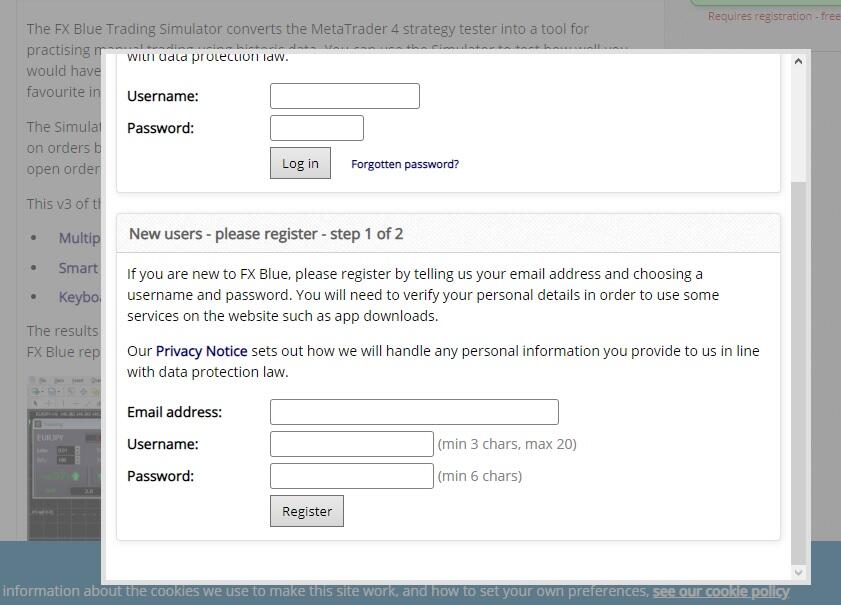
2. You’ll be emailed a message containing a link to confirm your registration. True, the developers still require your phone number as if an email address wasn’t enough.
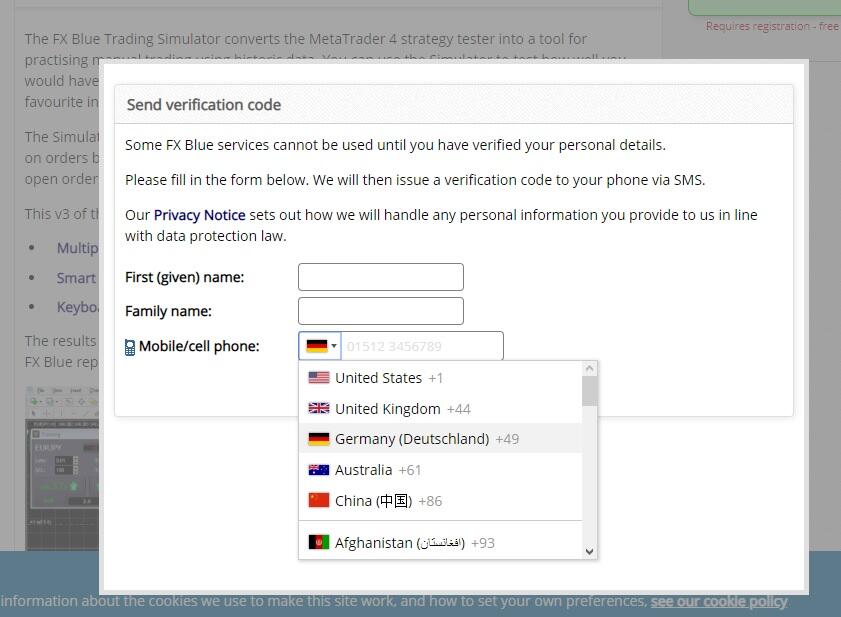
I’ve entered my first and last name in the 2 first windows using Latin symbols. There were a few comments reporting some troubles related to other alphabetic systems. However, there aren’t any problems with typing a phone number as the format is indicated in the window. An sms will be sent to the indicated email address in [email protected]. format. It’s the address to which you need to send any reply from your email address. For example, “I adore Forex”. In whatever language.
3. If all has been done properly, you’ll see the following message in one of the verification windows:
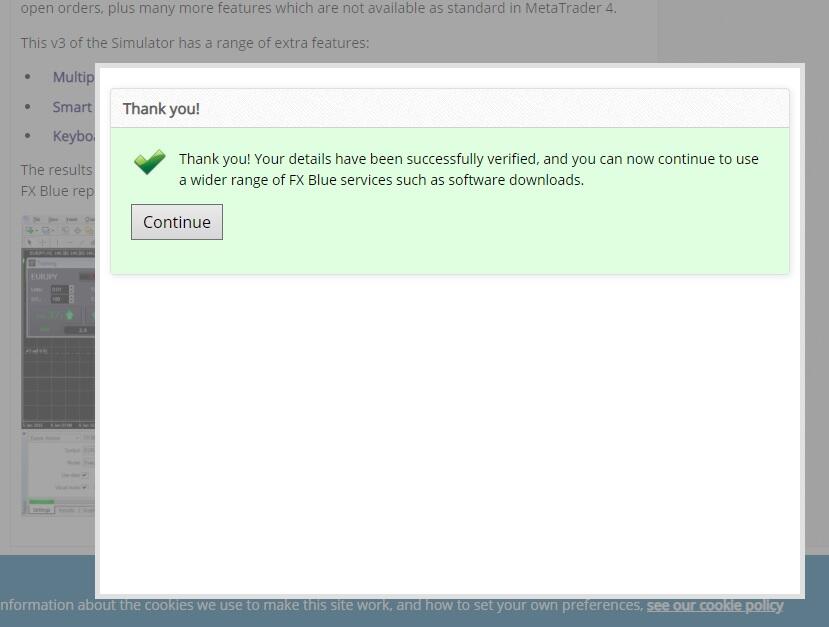
Congratulations, registration completed! Then, download a free archive from the developers’ site. As you see, there aren’t strict requirements concerning verification. According to the authors, the registration is meant for a trader to be able to upload his/her test results to the site of FX Blue and analyse them later.
Once MT4 is relaunched, the tester will appear in the left window “Navigator”. The window can also be activated through the “View” menu. The procedure for downloading quotes through MT4 has been described in detail in my previous review of Forex Simulator, so I won’t provide a detailed description now. Still, there’s one difference to stress: if Forex Simulator is launched with a double mouse click or through dragging it from Navigator onto the chart (and can’t work via Tester), FX Blue, on the contrary, is launched only by use of Tester. The following actions shall be performed:
- Click on “View” - “Tester of strategies”.
- In the window below, enter the “Expert Advisor” title and select our tester in the new window.
If at some moment you notice that the tester isn’t working properly (can’t open an order, testing went down, etc), relaunch MT4. It helped me out many times. I don’t know why such failures occur but nothing is perfect. So, we’d better adapt ourselves.

Enter the currency pair you’re going to test in the “Symbol” line and the test type - in the “Model” line. Testing takes more time when you choose a more exact option. Set your dates and click on “Start”. Enter your registration data in the window that appears on the chart.
- There’s an interesting moment here. Below the Date line, there must be the Visual mode line that you need to tick (obligatorily). I didn’t have any. Having read the forums, I resolved the issue in a second: it turned out that the tester window should be a bit extended. The Visual Mode displays a testing process on the chart while a slider controls its speed. If the speed if too high, the chart will run forward fast. But all is individual here.
How to place order in FX Blue simulator
Once the tester is launched, a window for a fast opening of trades will appear on the chart. Lot size, stop and trailing stop, or take profit can be set here.
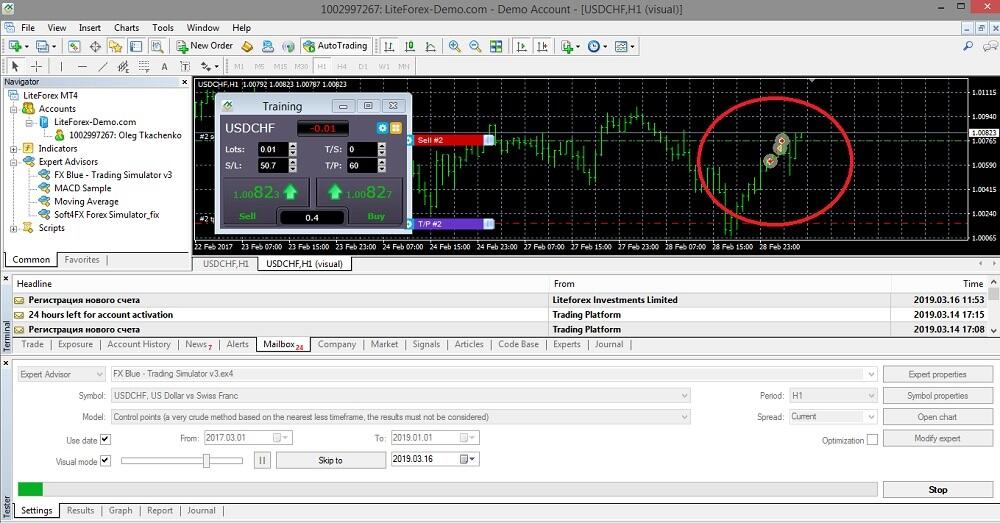
To calculate values, you need to activate the calculator. To do so, aim a mouse cursor at one of the windows, Trailing Stop for example, while holding down CTRL. Then, left-click on the window.
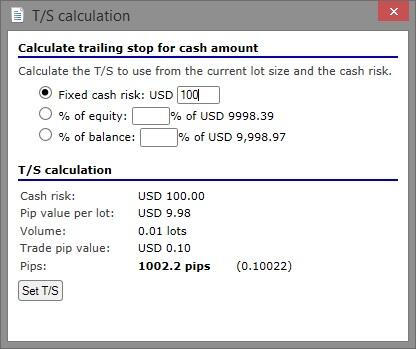
The quick trading window also allows setting pending orders. The menu can be activated by clicking on the orange icon in the right upper corner. Options:
- Order type. Besides classic market, pending, and limit orders, there are also One-Cancels-the-Other (OCO) orders to trade breakouts and retracements. A trader places 2 pending orders: Stop orders in the former case and limit orders in the latter case. When either order is triggered, the other is cancelled.
- Trade Volume. Fixed or dynamic lot size with the opportunity to set a fixed risk value in the deposit currency or a percentage of the balance/equity can be determined here. To calculate a dynamic lot, it’s necessary to indicate the length of a stop - a basic parameter on which calculations are based.
- Stop Level: fixed or floating. You can indicate a % of balance/equity.
- Take Profit Level.
- Order comment and assignment of Magic-number.
The blue icon located nearby provides fast access to the settings for a fast confirmation of orders or no-hedging mode. Also, this menu allows activating the information on the account.
A saved template may be activated at any time. The title of a template is found in the first line “Templates”.
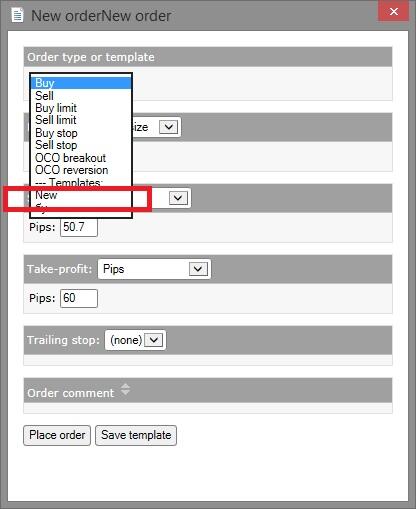
A placed order appears on the screen. The control process isn’t very convenient, but one can get used to it with time. One of the advantages is that you can move a placed order right on the chart by holding down the marker on its right side. Clicking on the marker, you can activate the window of the order where its values will be displayed and where you can close it.

The simulator is launched as of the date indicated in the tester (in the lower window). To pause the simulator, you need to click on the button located near the visualization scroll (the blue square in the next print-screen). During a pause, you can change a test speed (speed of candle building), add an indicator, assess the chart from the point of view of fundamental analysis. If you click on Stop, the simulation will stop completely and the profit/loss registered at the moment of stop will be displayed on the screen. More detailed results will be imported onto the developers’ site. You can’t relaunch simulation from the moment where you stopped, you can only start it in a new window.
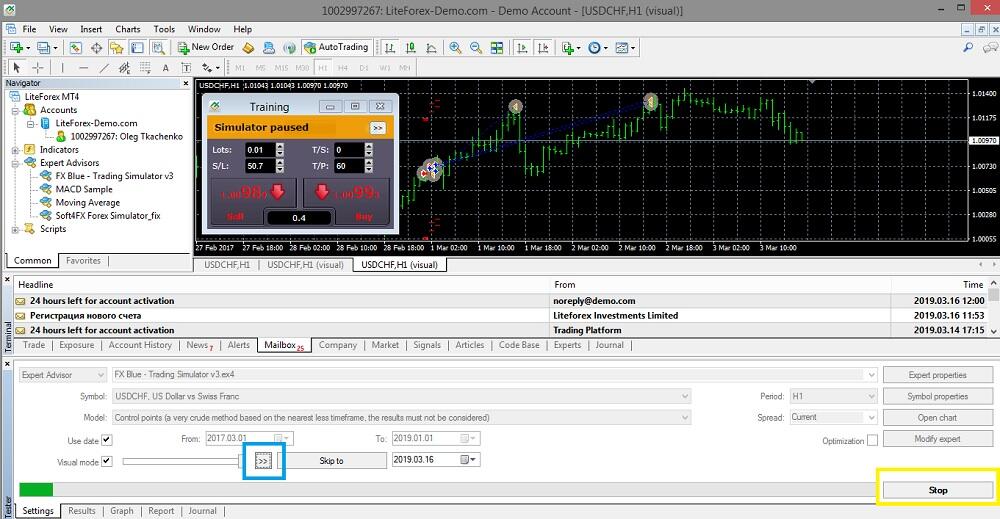
To close orders, you need to click on the window that displays your currency pair and the following suggestion will appear on the control panel: Close pending orders, all profitable, all loss-making or all orders. To close a specific order, left-click on it twice on the chart and press “Close”.

The picture also shows how open and closed trades are designated. Buy and Sell arrows are in different colours. Inverse arrows show closed trades. When aiming your mouse cursor at any of the orders, you’ll see opening/closing prices, the direction of the trade and who’s closed it. In our case, the trades were closed automatically by the tester through Stop Loss.
Smart-Lines. It’s an interesting function which allows testing a trading strategy by use of vertical, horizontal, and trend lines. The window is activated in the following way: plot a line on the chart (MT4 panel tool), un-pause the tester (the window won’t get activated in the pause mode), hold down Alt and left-click on the line. You’ll activate the window for setting Smart-Lines.
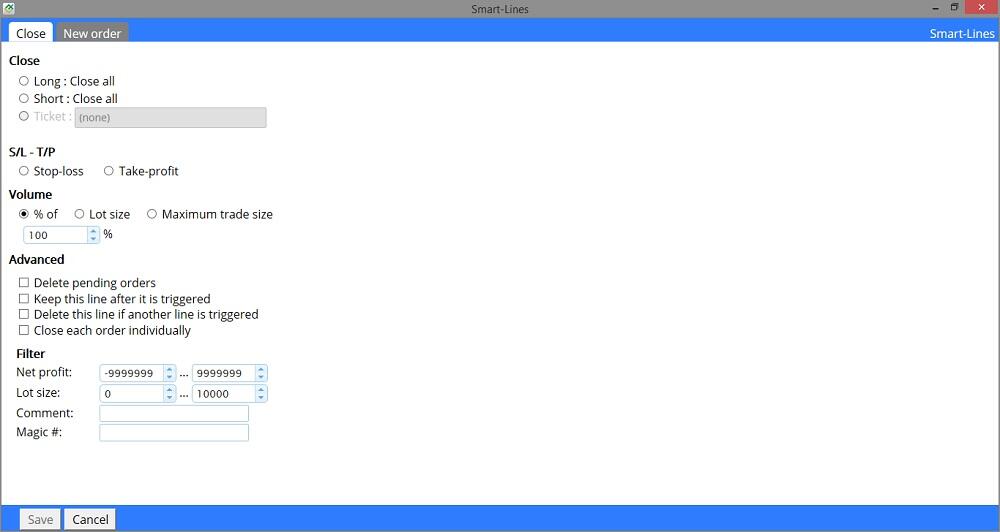
I won’t pay too much attention to this tool as the manual provides all the necessary details. But I’d like to mention that it’s a kind of level trading in which a trade is closed automatically. The lines serve as stop loss and take profit for open trades. Pending orders can be closed by lines as well if it’s specified in the settings.
Simulation on different time frames/ Another convenient function consists in analysing several time frames at the same time during simulation. Choose your main time frame in the window below. The current default value is H1.

Then click on “Expert properties”, choose the tab “Inputs” and scroll it down a bit. Choose additional time frames.
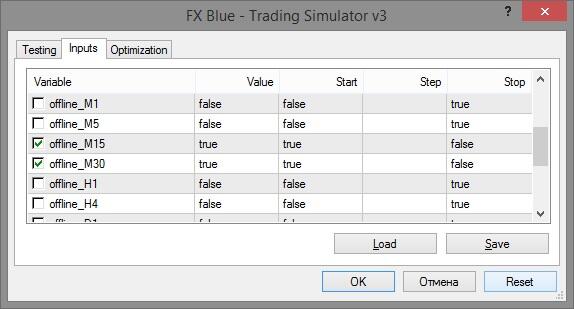
Update: after several updates of the simulator, the inputs window has partially changed: several corrective parameters have been added. I suggest you test it yourself and share your opinion in the comments on what do they affect. To activate a time frame, tick the boxes and change “False” to “True” in the first two columns. The value of the third column changes automatically depending on the values of the first two.
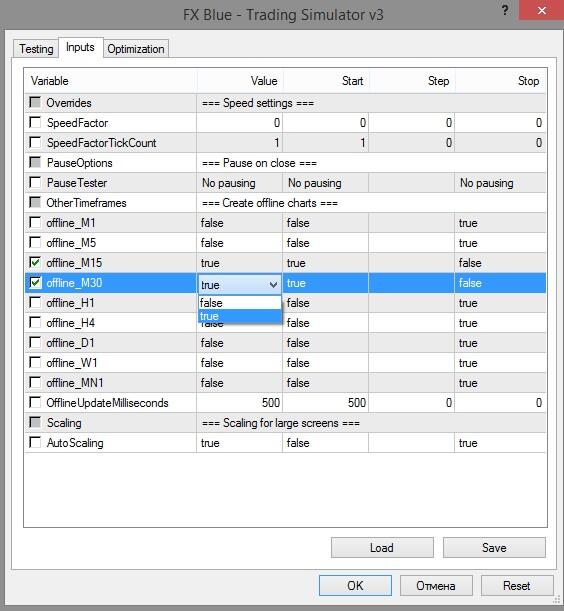
Next, start testing the main time frame, pause the simulator and click on “File - Open Offline” in the main menu of MetaTrader. The data generated as “!SIM” will be displayed here. Open necessary time-frames, place charts and run the tester that will work in 2 charts at the same time. The more charts you open, the slower simulation runs.
How to analyze the trades
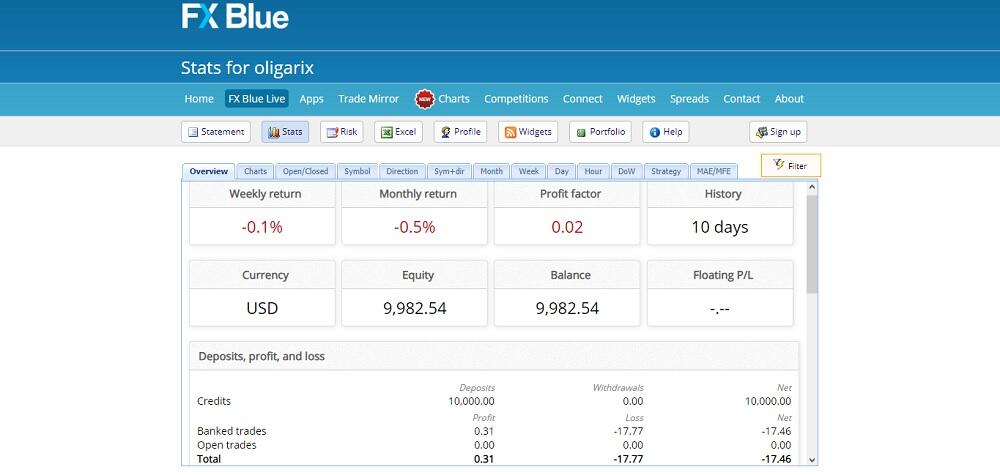
Once simulation is either interrupted by clicking on the “Stop” button or completed, there will appear a final window which displays information on profits or losses in all orders. The date specified in the tester will be the end date of simulation.
The final report is displayed on the browser. It can be imported to Excel. If judged by the amount of statistical information, it reminds of MyFxBook reports. How to analyse statistical data is another subject, even more so because there’s no single approach to it. I just recommend running through all the tabs, testing a strategy on different currency pairs, and comparing results.
Drawbacks of FX Blue
- Some features don’t work properly. The platform sometimes freezes up. I can’t say what the reason was, but it was the tester that froze up and I had to plot a chart from scratch after a relaunch.
- There’s a problem with the time frame scrollbar. Its maximum number of units is 32. Logically, when the runner is moved from 1 to 32, the scrolling speed of a chart should be growing respectively and uniformly. But it does so only up to the value of 31. At the same time, the speed of 31 doesn’t correspond to a desired scroll speed, certainly. But if we set the speed at 32, the whole chart will be drawn in less than 30 seconds on the 2-year time frame.
- There’s no option to pause simulation, go back and place an order post factum. I’m not speaking about upgrading the results (there are some cases when back-tests are falsified), I’m speaking about convenience and time-saving. The developers think the fact that statements cannot be falsified is an advantage.
- The functions are tailored to MT4 exclusively. There’s a FX Blue version for MT5 too, but its set of functions is even poorer. For example, it’s impossible to open positions in several tools or test multicurrency strategies. Considering the fact that MT5 didn’t find many champions among traders, the developers chose not to design an enhanced MT5 version of the tester.
There’s another moment to remember for those who work with the tester: there’s no redrawing. This problem concerns not only FX Blue but also any other tester which draws charts based on historical data. Redrawing is a situation in the real market when a trader sees a signal (for instance, Bollinger bands breakout), decides it’s a start of a new trend and opens a trade in the respective direction. Then the price reverses and the indicator redraws itself in a way that shows a retracement instead of a breakout.
One of the main reasons for redrawing is that indicators depend on closing prices. Many oscillators’ formulas are built based on comparing a current candle’s value to previous candles’ ones. There won’t be any redraws in a tester where quote values are already known. In the real market, where large volumes can change a situation in a second, there may be any closing prices. As soon as a candle closes, an indicator redraws itself. For the purpose of testing, it’s advisable to use indicators without redrawing (those which aren’t affected by closing prices). Also, remember that testing results may differ from those achieved in the real market.
Still, in spite of all its drawbacks, this tester is considered to be one of the most convenient for testing simple MT4 strategies. By the way, pay attention to the manual’s separate section devoted to key combinations. For example, you can change the scroll speed by using keys as well.
Conclusions on using the FX Blue trading simulator
FX Blue is another tester of manual strategies which has both advantages and disadvantages. The advantages include convenient visualization and quite a large tool kit for analysing statistics. Improper operation and a limited set of functions belong to its drawbacks. Given a fact that the simulator is free and the reviews are mostly positive, I recommend assessing its potential in practice. Feel free to post your questions and comments!
P.S. Did you like my article? Share it in social networks: it will be the best "thank you" :)
Useful links:
- I recommend trying to trade with a reliable broker here. The system allows you to trade by yourself or copy successful traders from all across the globe.
- Use my promo code BLOG to get a 50% deposit bonus on the LiteFinance platform. Simply enter this code in the appropriate field when funding your trading account.
- Telegram chat for traders: https://t.me/litefinancebrokerchat. We are sharing the signals and trading experience.
- Telegram channel with high-quality analytics, Forex reviews, training articles, and other useful things for traders https://t.me/litefinance
Price chart of EURUSD in real time mode

The content of this article reflects the author’s opinion and does not necessarily reflect the official position of LiteFinance broker. The material published on this page is provided for informational purposes only and should not be considered as the provision of investment advice for the purposes of Directive 2014/65/EU.
According to copyright law, this article is considered intellectual property, which includes a prohibition on copying and distributing it without consent.