Forex Simulator online is one of the relatively simple and user-friendly programs, which, after downloading quotes, allows you to test manual strategies at any historical period and improve your trading skills before starting trading careers, entering real markets, and making an initial investment by putting real money. The trading simulator is an MT4 application that allows you to combine its functions with the basic tools of the platform in trading forex. I won't say it's the best trading simulator, but it is really useful. The resulting summary report can be downloaded for analysis in several formats. The quick test option allows you to get a general idea of the performance of the trading system. Extended testing gives the closest possible results to trading forex on a free demo trading account and a real one. In the review, you will find out about the functions and capabilities of the strategy tester, its settings, and testing principles.
The article covers the following subjects:
Forex Tester (Online Forex Simulator) – software for testing strategies
How to find out whether the strategy for trading forex you have created or found on the Internet is efficient in practice trading? It seems a logical option to launch it on a demo account before trading with real money, but this option also has drawbacks:
- What parameters should be set up in the indicator settings?
- Which indicator signals should be considered major, and which – minor?
- Where should you set your stop orders, and at what point should you stop using the strategy and send it for optimization?
- How long should you test the strategy on a demo account before using it on the real market?
- What should you expect when working with this strategy in trading forex?
A backtest downloaded from MT4 after testing the strategy at early periods can answer all these questions in addition to testing your strategy on a free demo account. But demo trading is not always present, and it might contain errors: different quotes, testing methods, or broker functions can change the result dramatically. Therefore, the best option for those who seek advice and want to lower financial risk is to test a trading strategy using a trading simulator.
Online Forex Simulator software is an interesting simple free program for testing manual forex strategies developed for the MT4 trading platform, one of the most popular forex platforms, using virtual funds. I haven't tried it on other trading platforms. Below you will find out how to work with this program for trading forex, to practice trading, what its advantages and disadvantages are in comparison with the built-in MT4 tester, and checking the system performance on a demo account.
Forex Simulator Review
Using trading simulators in trading forex allows you to run a strategy on a time interval of several years in a few hours. Trading historical data saves your funds on a real trading account. The test result performed by trading simulators will show the size of the maximum profit and loss in trading forex, the ratio of profitable and unprofitable trades, the average stop order levels, the viability of the automated trading strategy during a period of strong fundamental surges, etc. Read more about the methods and parameters for evaluating trading forex systems here.
There are no perfect trading simulators; each has its own strengths and weaknesses, which are manifested in its functions. The results can't constitute investment advice or act as an independent financial advisor. Besides, a particular trading simulator may not be compatible with trading platforms. Online Forex Simulator software is a simple tester that is suitable for forex traders who are willing to develop their trading skills without any special requests.
Forex Simulator features:
- Compatible with MT4 trading platform indicators. It works with basic indicators without any problems. It's a bit more complicated with the unique and combined indicators. Forex traders say on the forums that it is not always possible to combine the tester with unique tools. You will have to try it yourself. Besides, this trading simulator doesn't work on other trading platforms.
- Testing at different speed intervals. The trading simulator allows you to rewind areas where there were no signals. On separate segments, you can make changes by rewinding the simulation back and running it again.
- Simultaneous testing at different time intervals. Here we are talking about strategies for trading forex that are based on analyzing multiple timeframes simultaneously. Forex traders can open three screens with minute, hourly and daily intervals, looking for a coincidence of the short and long-term trends.
- Custom timeframes and charts. You can set the time intervals H3, M2, etc. You cannot do it in the basic version of the MT4 trading platform, but you can add a script. With Online Forex Simulator, you don't need one.
- Quotes providers – Dukascopy, TrueFx. The historical tick data of these suppliers is considered accurate. If you have another option, you can upload your own historical tick data. For example, it makes sense to use the historical price data of the forex trading broker you usually work with.
- Synchronized calendar. You can add economic calendar events to the testing chart to quickly see market news and the fundamental causes of anomalies.
- Setting up the automatic triggering of orders and following the established risk management parameters. This is more typical of simulators working with automated forex trading systems, but it may be useful to someone for manual strategies and different trading styles to collect detailed statistics.
The test results of the entire period or a separate section with all open trades and results of the forex trading can be transferred to Excel. After downloading quotes to the trading platform, the trading simulator can work offline.
You can find similar functions in other trading simulators, but only in paid versions of the trading simulator to test investment strategies in different market conditions. If you know any other free trading simulators with similar functions or the one you can suggest as the best trading simulator, please share them in the comments, and I will try to review them. The working language of the free trading simulator is English only.
1. Installing and setting up Forex Simulator
Unlike classic forex trading simulators and testers like System Creator, this simulation software works only in MT4, one of the most popular forex platforms, and can start trading only in the Windows operating system. RAM requirements – 4 GB and up. Some people say you need to pre-install Microsoft.NET Framework 4.5. If the system is updated automatically, you don't need it to launch a trading game. At least I didn't.
Step 1. Installation. Before you start trading on the simulator, you should install the trade simulator. The forex trading simulator is installed on a trading platform like any regular Expert Advisor. Download the program archive, in which you will find the main file with the extension .ex4 (you can download the archive here). Then launch MT4 and go to “File – Open Data Catalog”.
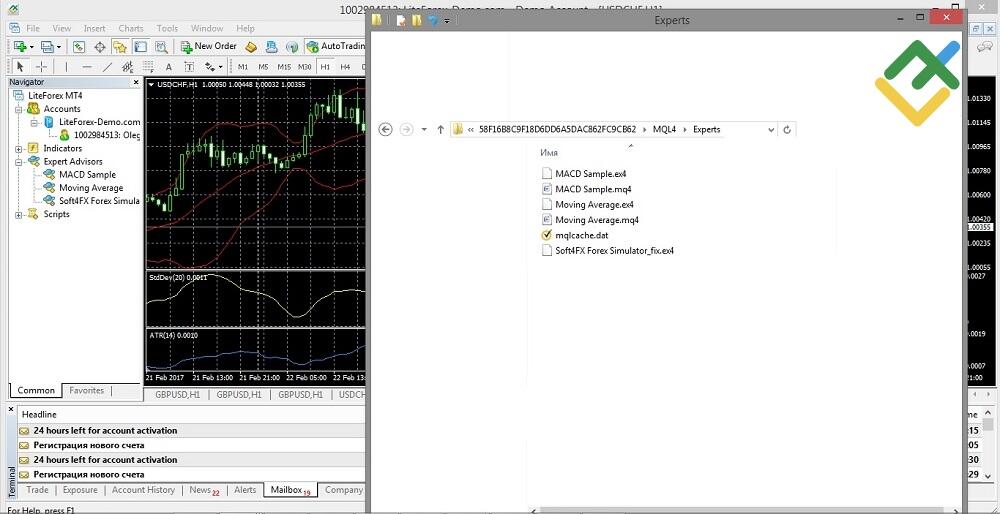
Restart MT4 and on the left side of the terminal, in the “Navigator” window, open the “Advisors” menu. If you did everything correctly, the online Forex Simulator will appear in this menu, as seen in the screenshot above (line 4 in the section “Expert Advisors”). Sometimes errors occur with the installation path. The path must only be in Latin. If you are having a problem, describe it in the comments, and I will try to suggest how to solve it.
After restarting the MT4 trading platform, go to “Service – Settings – Advisors” and tick the box as shown in the screenshot below.
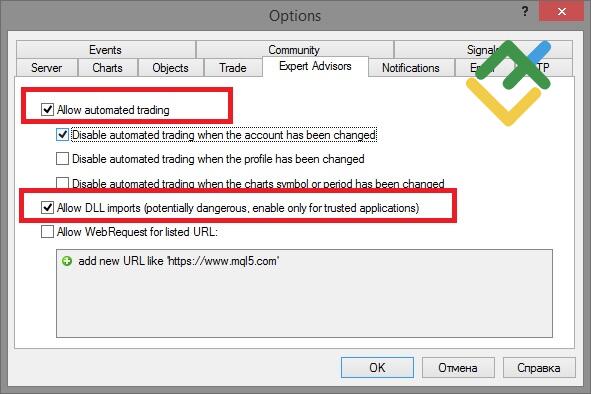
Step 2. Start. The trading simulator is launched in the MT4 window instead of the chart. Please note that the launch of the program will automatically remove all indicators on the chart. They are added only after starting the tester during the simulation on the MetaTrader trading platform. The program is launched either with two mouse clicks (as standard software) or by dragging the name of the free trading simulator onto the MT4 chart. After launch, a registration window appears with tabs: “About the program”. This is standard information.
- “General Settings”. This is pretty obvious. Sound alerts, permission for automated trading strategies. Although the tester is designed for manual strategies, I recommend ticking the boxes anyway.
- “Input Parameters”. Enter any address in the email line and any activation code, you will not need it anyway. “Always on Top” – with the current «false» setting, the order in simulated trading will be opened at the best market price. The next tab in the simulation software sets up the order of the buy and sell buttons. By default, "Buy" is the first, but it's your call.
- “Dependencies”. The files specified here are not subject to change.
Click "Ok". If done correctly, the following picture will appear.
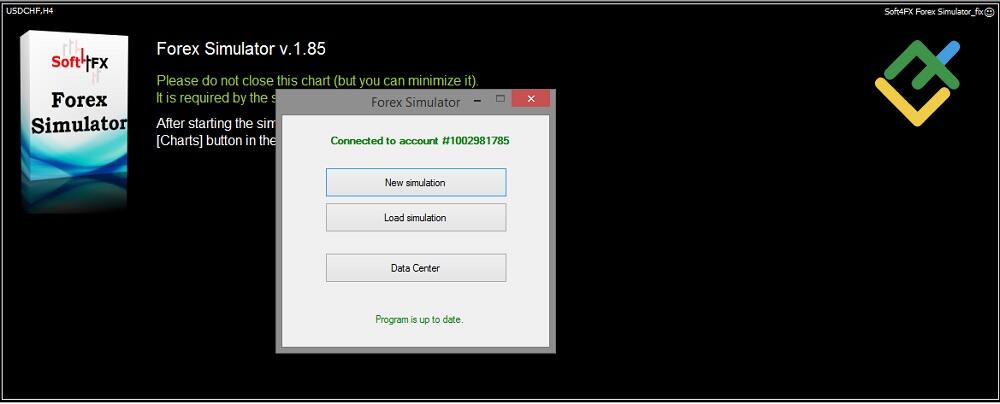
The first button is to start a new simulated trading in the fx simulator (in our case, it's the one we need). The second button is for downloading the previously created simulation. The third is to download data from the Dukascopy archive.
Any testing on trading simulators or strategy generation requires uploading history quotes, the past performance. You can upload the past performance of the quotes altogether or for a separate currency pair. First, we upload quotes available in the tester by clicking “Data Center” (the third button in the last screenshot). In the window that appears, tick the currency pairs of interest (you don't need to download all the foreign exchange quotes – this can overload the MT4), and specify the upload path by clicking the "Change Folder" button.
As I have said above, Dukascopy quotes are considered high quality tick data, but there are other opinions to upload proven track record. You can also download quotes via MT4, i.e. download historical tick data from the broker’s archive or MetaQuotes. To do this:
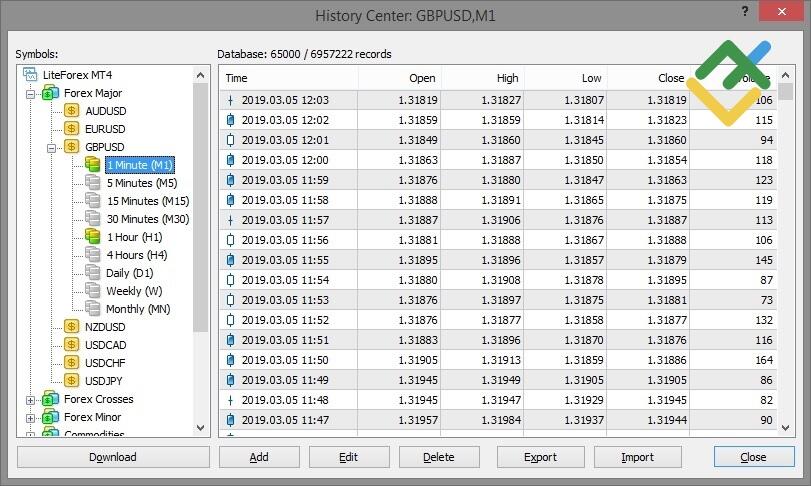
- In the top menu in MT4, click "Service – Quotes Archive". The menu key is F2.
- In the "Symbols" window, select any assets that need quotes from the drop-down list. For example, in the screenshot below, you can see that with LiteFinance broker, among others, you can select quotes for indices, commodity assets, foreign exchange currency pairs, and cryptocurrencies. Double-click the picture of the currency pair that appears with the left mouse button – the option to download trading timeframes will open. I download 1-minute trading history.
Restart MT4. To start trading, open the chart of the currency pairs for which you have downloaded the quotes (File – New Chart) and scroll the screen to the left to the very beginning of the chart (the Ctrl + Home button will help to do this very quickly). Before this, remember to disable Autoscroll.
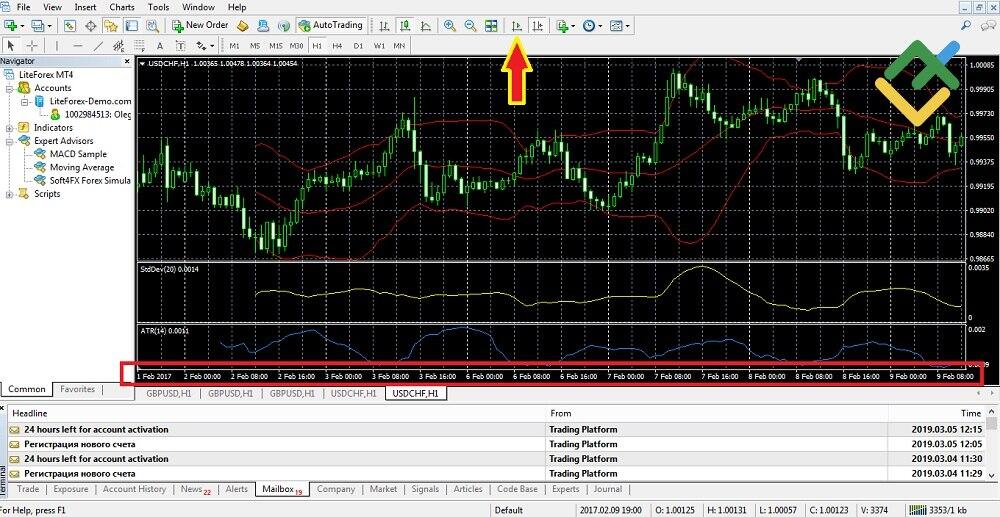
The simulator should be started from the very beginning of the downloaded quotes, if Autoscroll is not turned off, then with the new price movement, the chart automatically returns to the current day (i.e. you will see the end of the chart rather than the historical tick data).
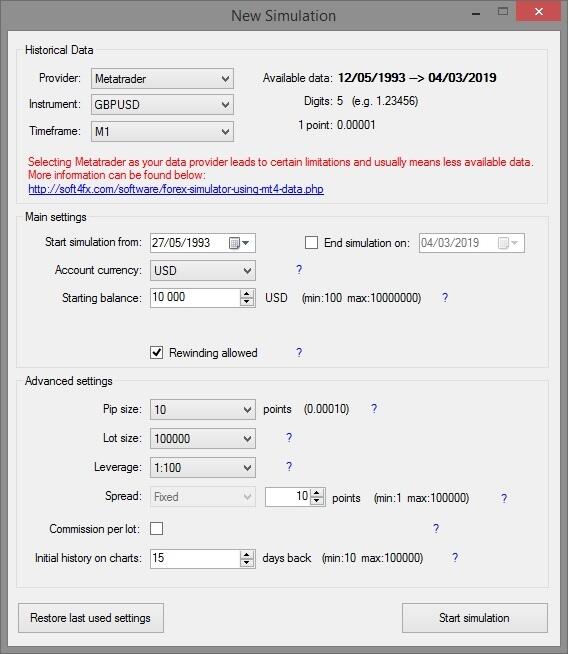
Go back to the Forex Trading Simulator and launch a new simulation. In the settings window that appears, set the following values for simulated trading:
- Provider. Choose the supplier of quotes. Here you have three options: DukasCopy, TrueFx, Metatrader. I chose the third option, as I suppose these are high quality tick data.
- Instrument. Here you select the asset (for example, a currency pair) to be tested.
- Timeframe. I chose M1.
Next block:
- Date from which the simulation will be started. By default, the simulation should start from the beginning of the period of uploaded quotes (I uploaded the historical data for the last 11 years). You can set the simulation period on the historical data of a certain segment for different forex trading strategies and different market conditions.
- Deposit currency.
- Deposit amount.
Rewinding Allowed – this box ticked by default allows you to go back (rewind the history).
Next block:
- Point size. It determines how many digits after the decimal are taken into account in quotations (4 or 5).
- Lot size. Almost always, it is equal to 100,000 units of the base currency, but there are exceptions. For example, “in order to make possible the use of three types of accounts on one account at once,” one of the brokers introduced the lot size of 10,000 units for retail investor accounts.
- Leverage.
- Spread. You can set it up yourself, for example, in order to test a strategy on a certain section in stress mode. By default, the spread is as specified in the Market Review (in the View menu and, when activated, is displayed in the left MT4 window next to the Navigator).
- Number of days to rewind. The maximum value is 100,000 days.
Run the simulation. The tester will offer to choose one of two simulation options:
- A comprehensive model built on the information from each tick.
- Model built on candlesticks, more precisely on the opening/closing price, high/low.
The difference is in testing time and accuracy, which will matter when you start trading on a live trading account together with other market participants. If the strategy is tested for the first time for a general understanding of its usefulness, then you can choose the second option. Before you run a strategy to trade forex on a real account, I recommend testing it in the trading simulators using the first option to avoid losing money rapidly.
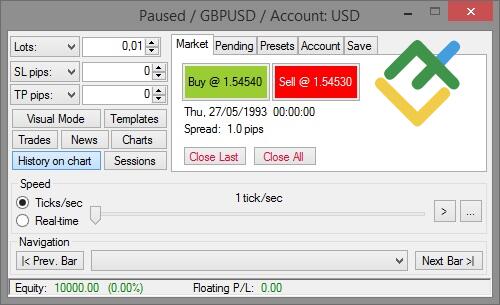
After starting the simulation, an order window will appear in which you need to set the basic parameters of the strategy. To call up the order, press the start button of the simulation again, and the order will appear in pause mode.
Set up the following:
- Lots. Lot volume to be traded. The minimum lot in most cases is 0.01 lot.
- Visual Mode. Activates/deactivates the window with stop loss and take profit parameters.
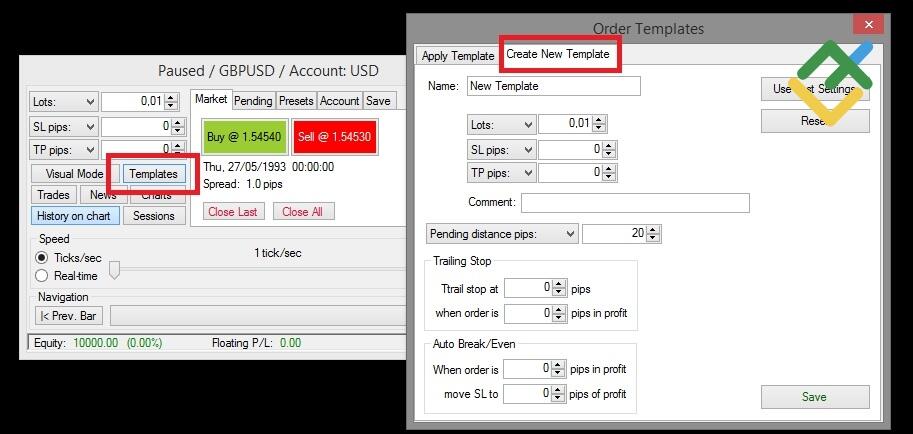
- Templates. This window allows you to use the already saved risk management system templates (Apply Templates tab) or create and save a new template (Create New Template tab).
- Trades. All order types are displayed here. It includes history and statistics. The window can be left open for the duration of the test.
- News. The news calendar is synchronized with the simulation schedule. Unfortunately, I could not activate it – Forex Trading Simulator reported that the calendar is not available when using Metatrader quotes.
- Charts. Set the time interval. Since 1-minute quotes were loaded, I will also set M1 here. This function combines great charting capabilities.
The block located to the right is designed to manage orders:
- Market. This tab contains buttons for buying and selling the asset with the possibility of simultaneous closing of all existing positions in the demo trading mode.
- Pending. Management of pending orders: placing them at the required distance from the current price, cancelling the last order, or closing all orders at the same time.
- Presets. Setting the trailing stop distance, activation of order comments, and setting conditions for cancelling pending orders.
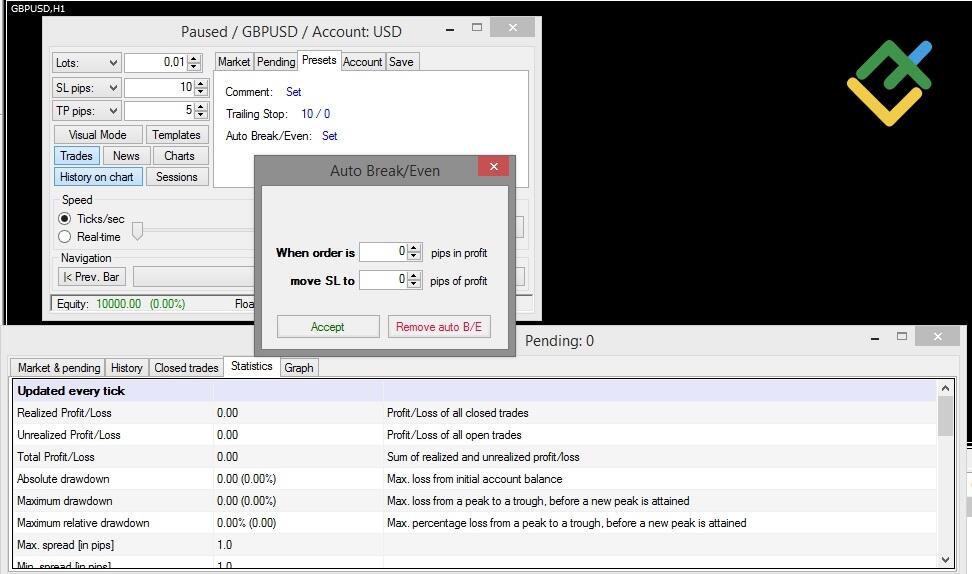
- Account. Reports on current trading results: information on total profits and losses, deposit amount, and equity.
- Save. Saving all data entered for the simulation, report upload, etc.
There aren't many input settings, the tester can be launched quickly, almost without reading the instructions.
2. Start of simulation and analysis of statistics
In the order window, under the button “Templates,” there is the button “Chart”, in which you also need to set up several key parameters. Click it and specify the number of candlesticks for the testing. Then click the "Add" button. In the line that appears, click "Open".
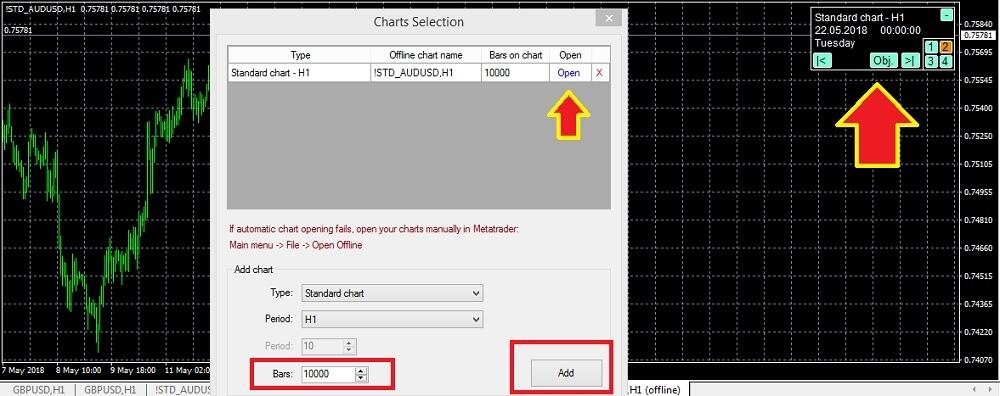
A small control panel will appear in the chart in the upper right corner, it can be minimized for the time being. Figures 1-4 indicate the location of the control panel since you cannot drag it manually.
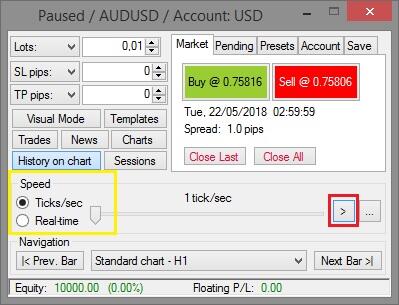
In this screenshot, the yellow rectangle outlines the speed of candle formation. While the slider is in the leftmost position, the speed is 1 tick per second. In the rightmost position, it will be more than 2.5 million ticks per second. You can also turn on the playback of the session at the real market speed.
At the moment, the simulation is in a paused state, which is indicated in the order header. After all the parameters are set, you can run the simulation. To do this, click the icon highlighted in the screenshot with a red square. By moving the candlestick speed slider, you can observe the change in the speed of the chart construction.
At any time, by pressing the play/pause button again, you can pause the simulation. To the right of the play button, there is a button with three dots, which allows you to configure an automatic pause when the following conditions occur:
- When the price touches the stop order.
- When the pending order is activated.
- When the trend reaches the preset price.
The pause button is needed so that a chart trader can stop and assess the situation in which a certain event occurred, compare it with the fundamental factors, etc. In the “Navigator” block, you can rewind events forward or backward.
In the simulator chart, a trader can do anything they see fit: overlay standard MT4 indicators, draw all sorts of levels, change the type of candlestick display, use graphical analysis and patterns: anything you can do in the standard MT4 chart.
The working field with data display is in «Trades» called up in the order. The first tab “Market & Pending” shows the types of open and pending orders, prices, lot volume, etc. The History tab shows the history of closed positions in forex trading strategies with varying results.
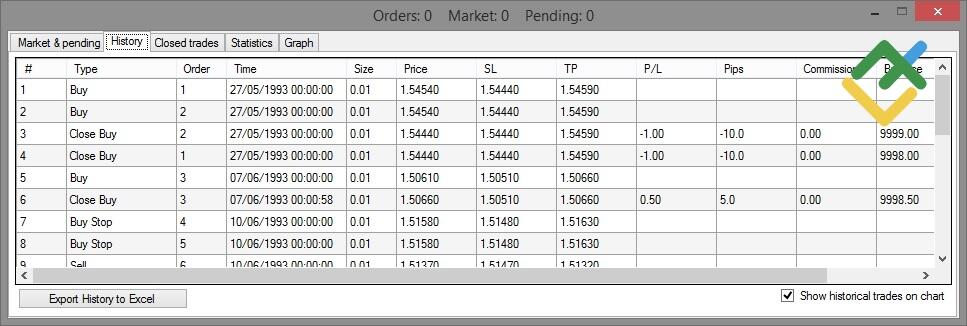
In the statistics tab, you can see all the basic information on trades, including equity.
Let me summarize. The algorithm for testing actions is as follows:
- Install Forex Trading Simulator like an advisor in MT4. Download quotes and go to the beginning of the test period in the MT4 chart.
- Start the simulator, and set up risk management parameters.
- Step by step, during the simulation, add technical analysis indicators on each segment of interest and manually open trades in the free trading simulator (place pending orders, close positions, trade historical data, etc.).
- Reach the end of the period. Wait for a message signalling the end of testing, look at the statistics and upload it in a format convenient for you.
This review describes the general functions of the Forex market simulator. In comparison with strategy testing on a demo account, Forex market Simulator is convenient in that it saves time by doing a run through previous periods with the ability to change the speed so that you can check your forex trading strategies before risking real money.
Conclusion. Online free Forex Simulator is an application for MT4 that complements the standard platform tester. So you can analyze new trading strategies for different financial instruments by spending virtual money before trading on a demo account and in the real forex markets; thus, you won't lose money in real trading. Unlike the more advanced testers of automated trading systems, the program has quite a modest set of functions. This version of the forex tester is designed only for NT4, it doesn't work for other popular forex platforms. There are no built-in stress tests, the same strategy is tested separately on different currency pairs. It takes a lot of testing time. But you can analyze each individual entry and exit from the market, taking into account fundamental factors. The program is free, so I propose to spend at least a couple of hours checking it out. I invite everyone to discuss the pros and cons of the Forex Trading Simulator in the comments.
P.S. Did you like my article? Share it in social networks: it will be the best "thank you" :)
Useful links:
- I recommend trying to trade with a reliable broker here. The system allows you to trade by yourself or copy successful traders from all across the globe.
- Use my promo code BLOG to get a 50% deposit bonus on the LiteFinance platform. Simply enter this code in the appropriate field when funding your trading account.
- Telegram chat for traders: https://t.me/litefinancebrokerchat. We are sharing the signals and trading experience.
- Telegram channel with high-quality analytics, Forex reviews, training articles, and other useful things for traders https://t.me/litefinance

The content of this article reflects the author’s opinion and does not necessarily reflect the official position of LiteFinance broker. The material published on this page is provided for informational purposes only and should not be considered as the provision of investment advice for the purposes of Directive 2014/65/EU.
According to copyright law, this article is considered intellectual property, which includes a prohibition on copying and distributing it without consent.