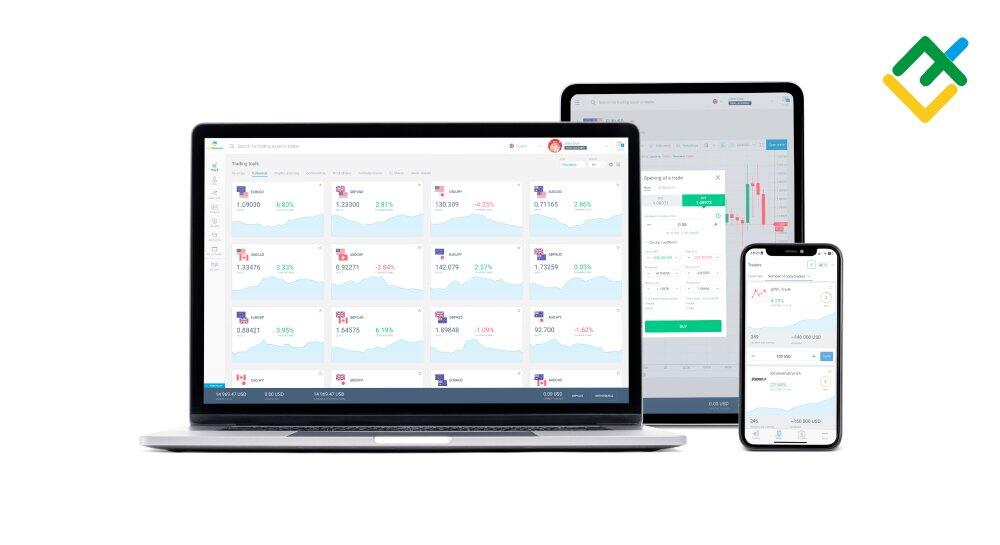
The LiteFinance web platform is a unique trading terminal designed for those seeking a balance between advanced functionality and convenience. The platform is streamlined to include only the most effective technical tools, and it features an intuitive interface.
This platform is more than just a trading terminal—it is a powerful all-in-one financial hub. Trade independently, copy professional traders' strategies, or manage your affiliate network—all on one platform. Read the review to learn how to get started and take advantage of everything the platform has to offer.
The article covers the following subjects:
Understanding LiteFinance Web Platform
The LiteFinance web platform is a browser-based trading terminal that offers most of the features found in its desktop counterparts. While it does not support algorithmic trading or customized tools, it is just as powerful as the classic MetaTrader platform in every other respect.
Platform features:
Management of trades and pending orders. Buying/selling any CFDs on stocks, currency pairs, commodities, cryptocurrencies, and indices.
Analysis of price charts using technical indicators and chart patterns.
Analytical data and signals for various assets, as well as helpful calculators.
Copy trading: passive income by copying other traders' orders.
The LiteFinance web platform is designed to provide a unified environment for trading, affiliate management, and passive income tools. Here, you can perform any type of operation on your account.
LiteFinance Web Platform Interface
The interface of the LiteFinance online terminal is divided into three main sections: the sidebar, the top panel, and the main window.
The content of the main window depends on which tab is selected in the side panel. For example, in the screenshot below, the Trade tab is selected. It displays a list of assets with their daily price performance and one-click Sell and Buy buttons.
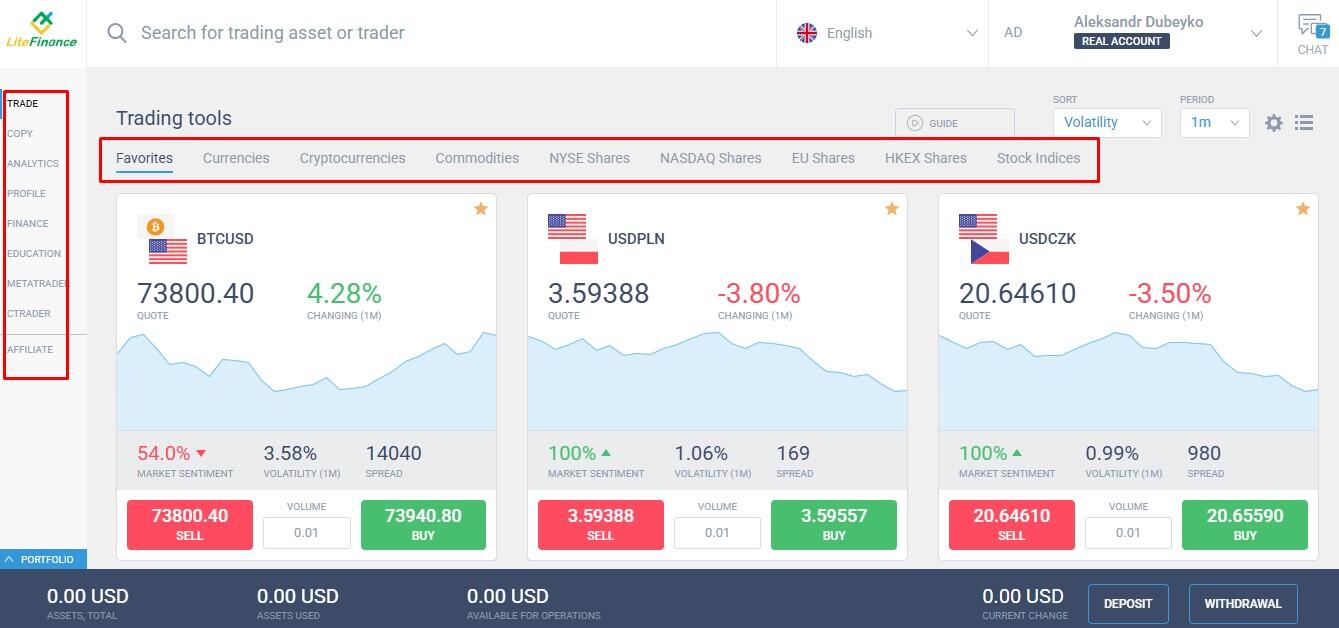
The top menu of the Trade tab includes groups of trading assets, period settings, and options for displaying asset tiles, including the ability to activate Quick Trading mode if it is turned off.
1. Switch Accounts. Open the top menu, which includes an option to switch between demo and live accounts.
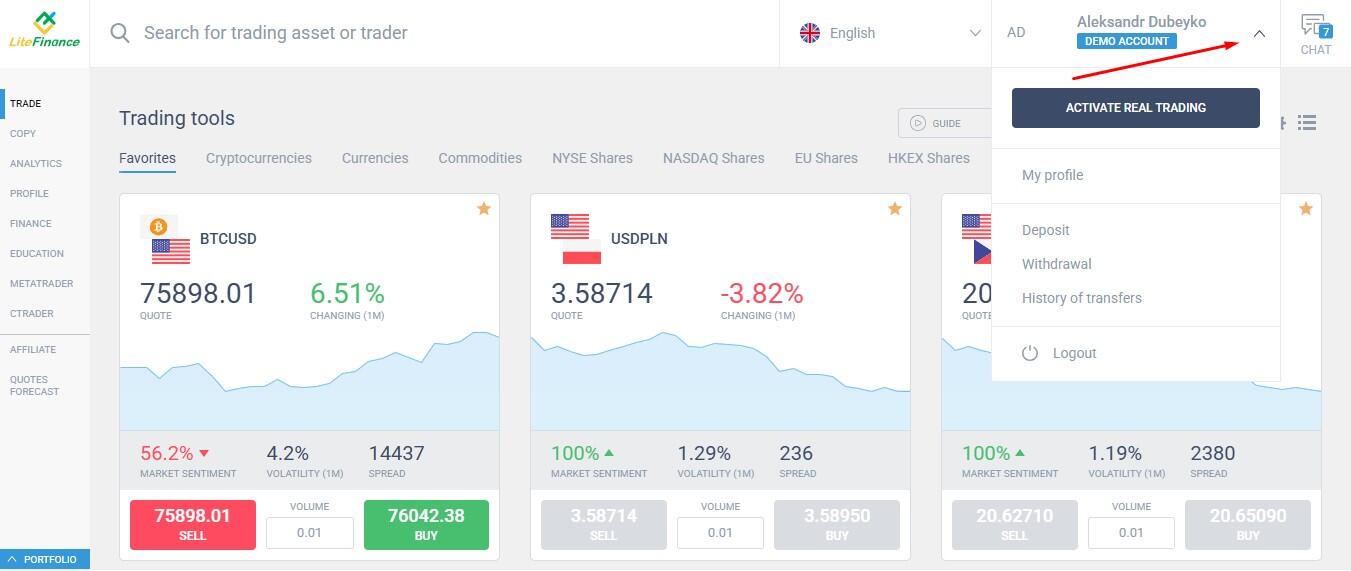
If you have several demo accounts, select the MetaTrader tab in the sidebar. In this section, you will see a full list of demo and live accounts, one of which you can set as your primary account.
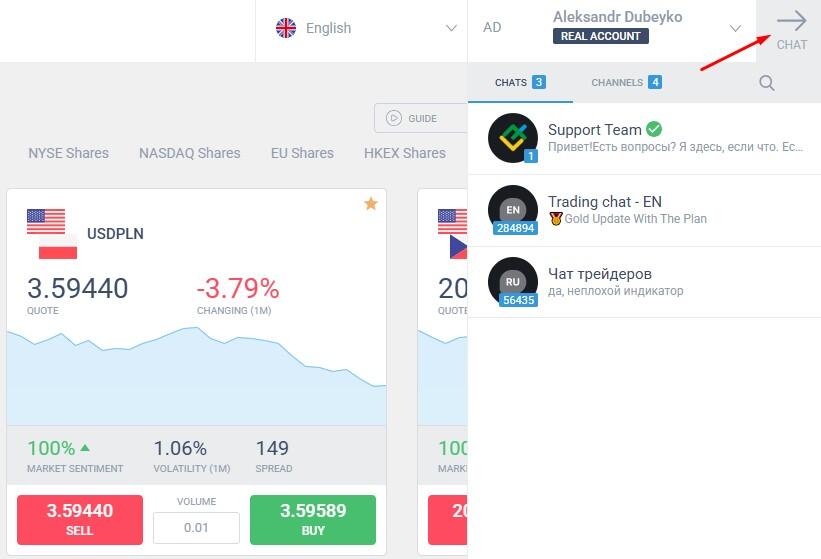
2. Client Support and Live Chat. Click the menu icon in the upper-right corner. The menu lets you access the client support chat and the live chat, where traders can also assist you with questions about trading and platform use.
Getting Started
General steps:
Sign up for your Client Profile. It takes 2–3 minutes.
Open a demo account in your Client Profile.
Explore the platform's features.
Verify your account.
Top up your account.
Open and close trades, copy other traders' transactions.
Withdraw profits.
If you have any questions about how the platform works, please contact the LiteFinance support team via your Client Profile.
Registration
Registration procedure:
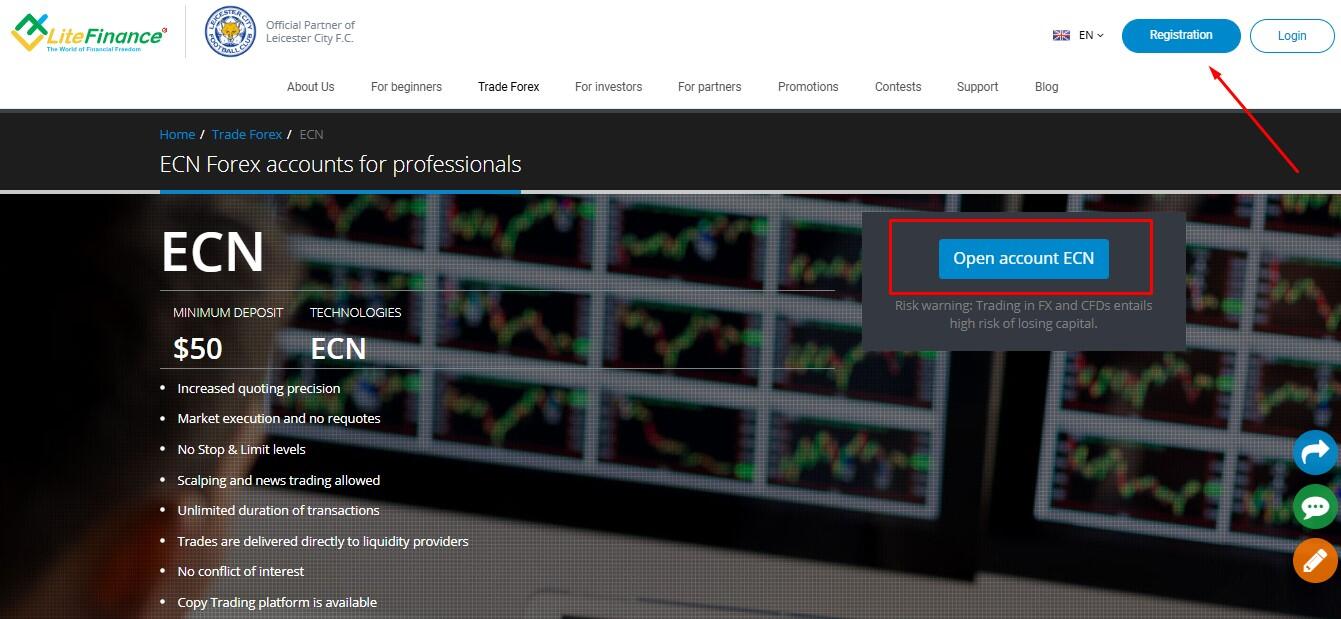
On the official LiteFinance website, click the Registration button. You can find this button on any page of the website.
Enter your country and phone number.
Fill in your email address and create a password for your account. You will receive a verification code via email. Submit it to verify your email address.
Account Funding
How to fund your account:
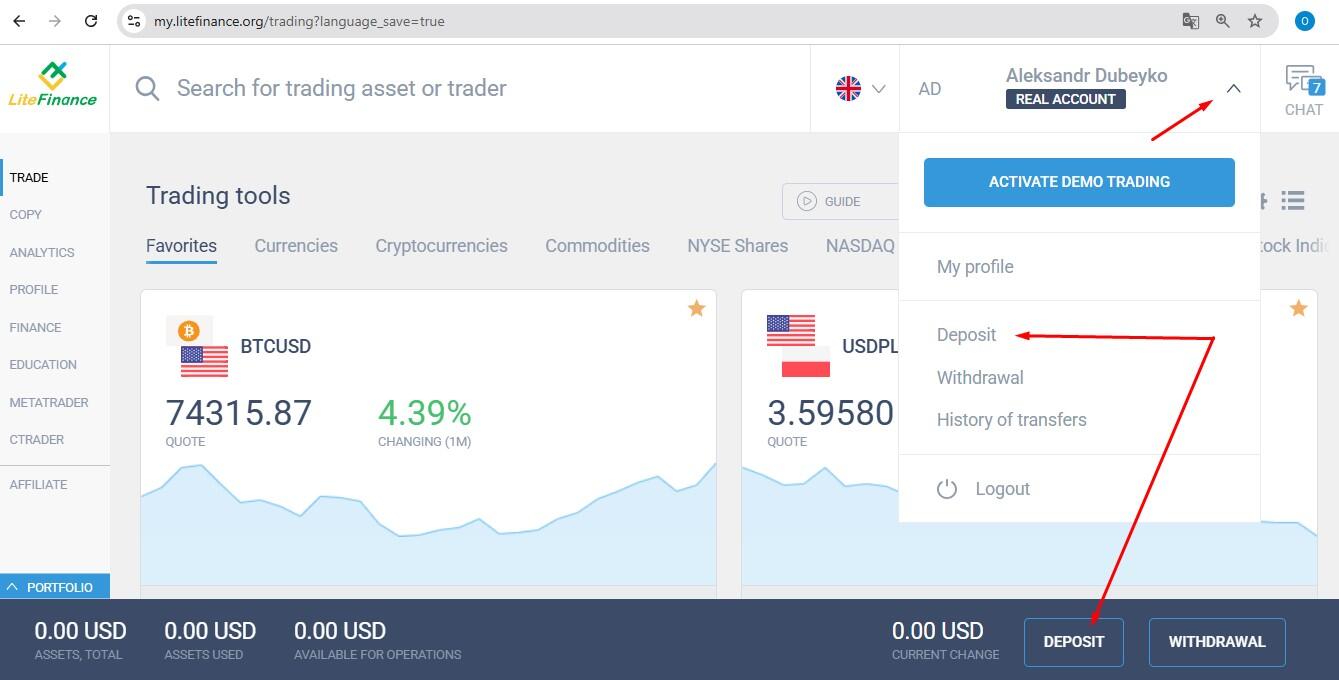
Click the Deposit button in the Client Area. Some functions on the LiteFinance platform are available in multiple sections, menus, and panels.
Select a payment method: cryptocurrencies, e-wallets, or credit/debit cards. Select a currency and enter the payment amount. If your account is in USD and the payment is in a different currency, the amount will be automatically converted.
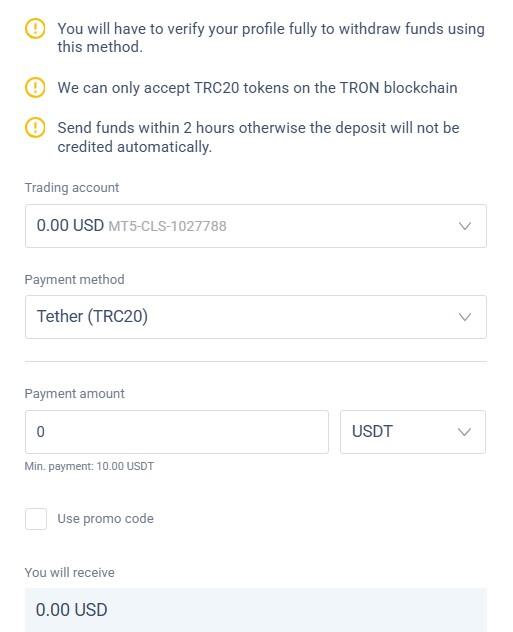
The minimum deposit amount and the fee vary depending on the payment method. For more details on deposit terms and conditions, please visit this page.
How to Start Trading
Your first trading account is opened automatically upon registration, so you can begin trading once your account is verified and funded. In your Client Profile, you can create multiple live and demo accounts. Transfers between accounts on the LiteFinance platform are instant and free, with no restrictions.
How to Trade on LiteFinance Web Platform
Trading involves two stages: analyzing the price chart using technical and charting tools, followed by executing the trade.
Follow these three simple steps:
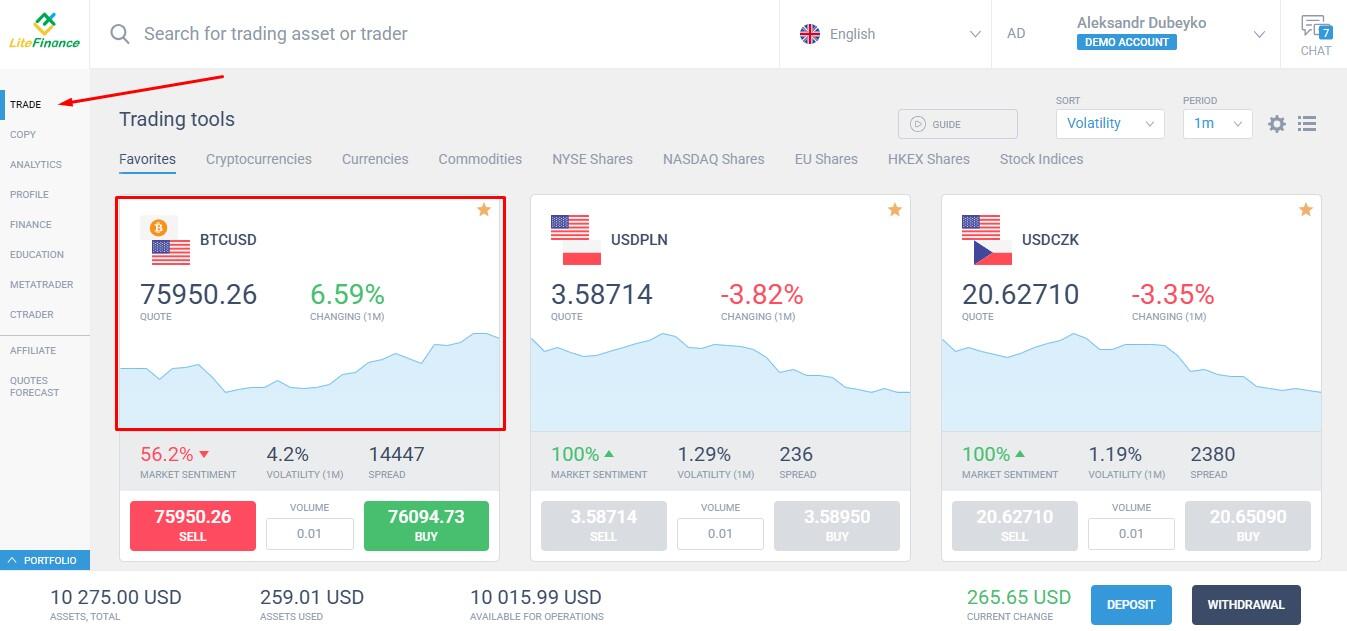
1. Click Trade on the left side panel. Select an asset.
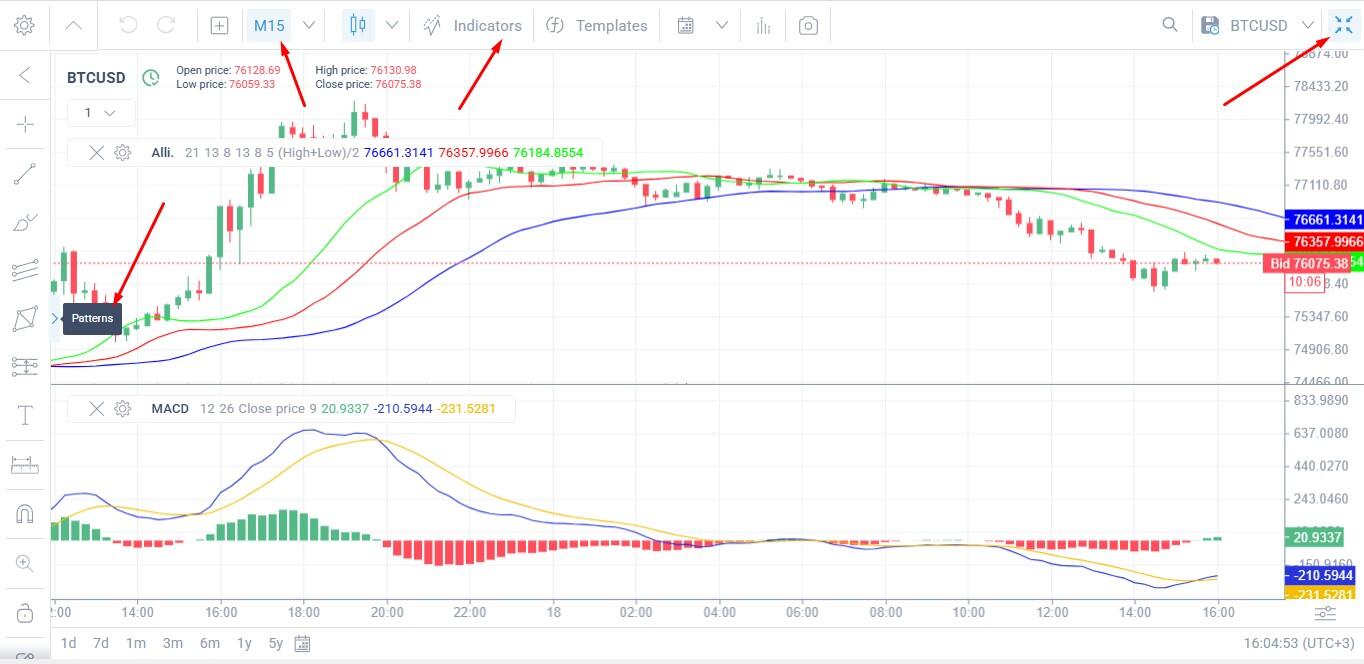
2. For your convenience, expand the chart to full screen. Select a time frame. Set up indicators and chart analysis tools. Wait for confirming signals, such as the price crossing moving averages from below.
3. Set the trade parameters in the panel on the right, then click Buy or Sell. Your open position will appear in the Portfolio section at the bottom.
Opening Trades
The trade entry panel is located on the right side and includes the following key settings:
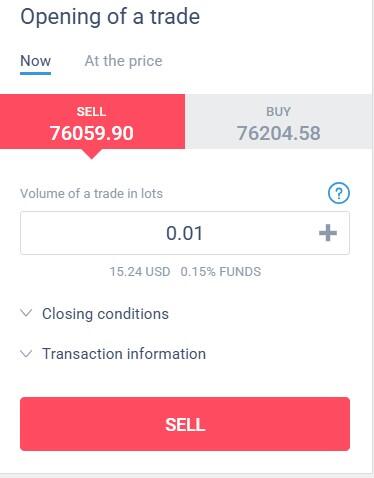
1. Order type."Now" refers to a market order, meaning the trade is executed immediately. In the "At the price" section, you can place a pending order, which will be triggered when the price reaches a specified level.
2. Volume of a trade in lots. The Funds level is displayed below the window and can be used to assess the risk level per trade.
3. Closing conditions.
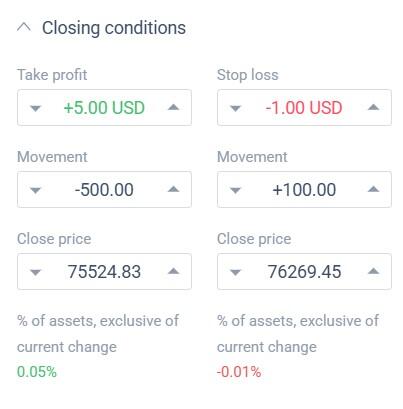
In this menu, you can set stop-loss and take-profit levels. You can indicate a specific price, or set the distance in points or in the account currency.
4. Transaction information. Margin, price of point, etc.
Portfolio
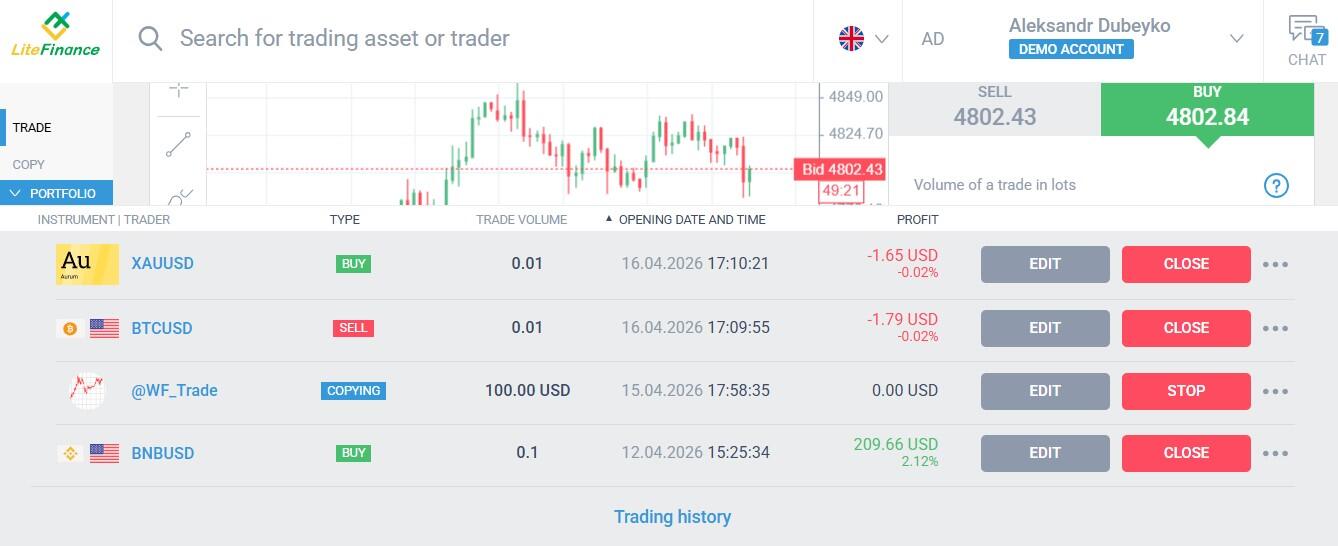
Portfolio is a section at the bottom of the platform that displays key information about open trades: trade type (manually opened or copied), trade volume, opening date, and profit.
You can also:
Edit the current trade (change the volume, set a stop-loss). Close the trade with one click.
View basic trade information, such as the swap amount.
Go to the trading history section for the active (main) account.
Closing Trades
To close a position in the Portfolio, click the Close button. You can also use automatic closing using stop-loss and take-profit orders.
Chart Functionality
The price on the chart can be displayed in several formats: standard bars, Japanese candlesticks, and a line chart. There are also seven additional options: Kagi, Point-and-Figure, Renko, Heikin Ashi, etc.
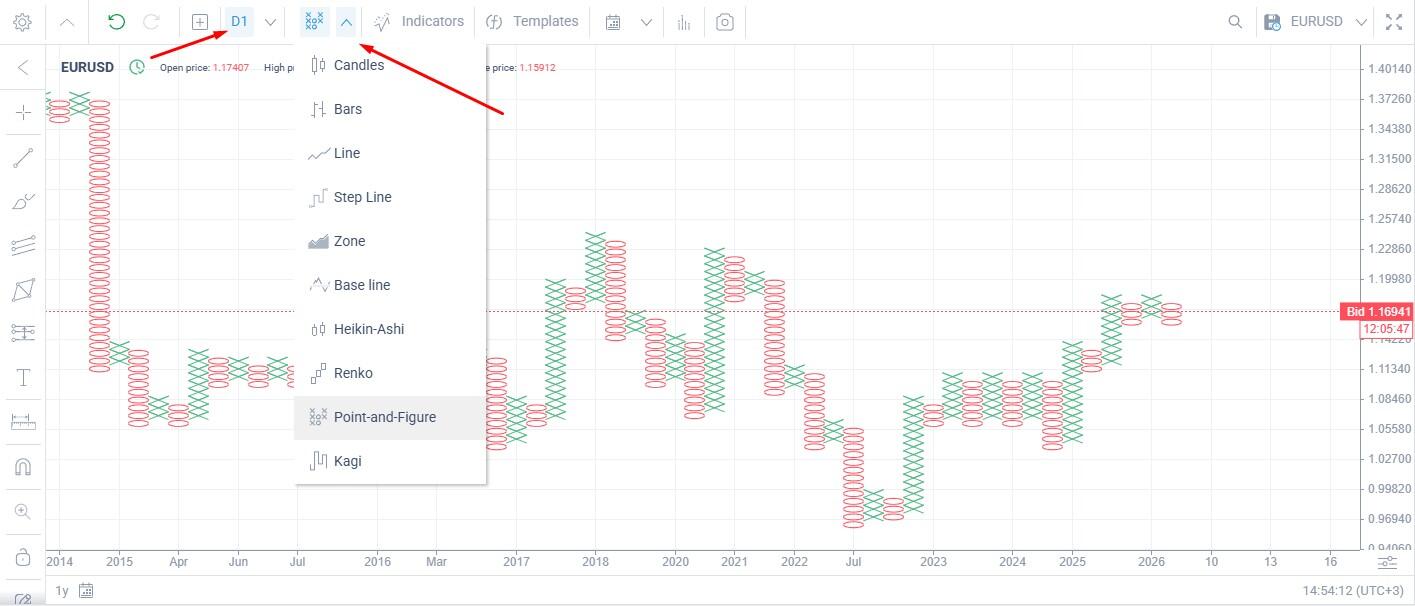
You can also change the timeframe on the chart (D1 in the screenshot above). The timeframe setting on a chart determines the duration of time that each individual candlestick represents. If the D1 timeframe is selected, each candle represents 24 hours of price movement.
Other chart features:
Zoom. You can zoom in or out using the mouse wheel. Below the chart is a Calendar feature, which you can also use to select the chart period.
OHLC prices (open, high, low, close). Hover your cursor over any candle on the candlestick chart, and all four prices will be displayed in the top-left corner.
Display of events from the economic calendar for the selected asset, with the ability to filter by country and priority.
Customize the display of Bid and Ask prices, the chart scale, and colors.
If you need to quickly capture a screenshot of the chart, you can use the instant screenshot feature.
Chart Analysis
Charting tools are located on the left-hand side of the chart:
Trend lines. There are 11 types, ranging from horizontal lines for drawing levels to rays at any angle and with convergence/divergence, as well as channels.
Geometric shapes.
Three types of Fibonacci channels and lines.
Complex patterns. Elliott corrective and impulse waves, Head and Shoulders, and the ABCD pattern.
Tools for calculating profit/loss on a selected candle.
Ruler. It shows the time and price movement for a selected section of the chart.
Magnet. It is designed for the precise positioning of drawing tools relative to prices on the chart.
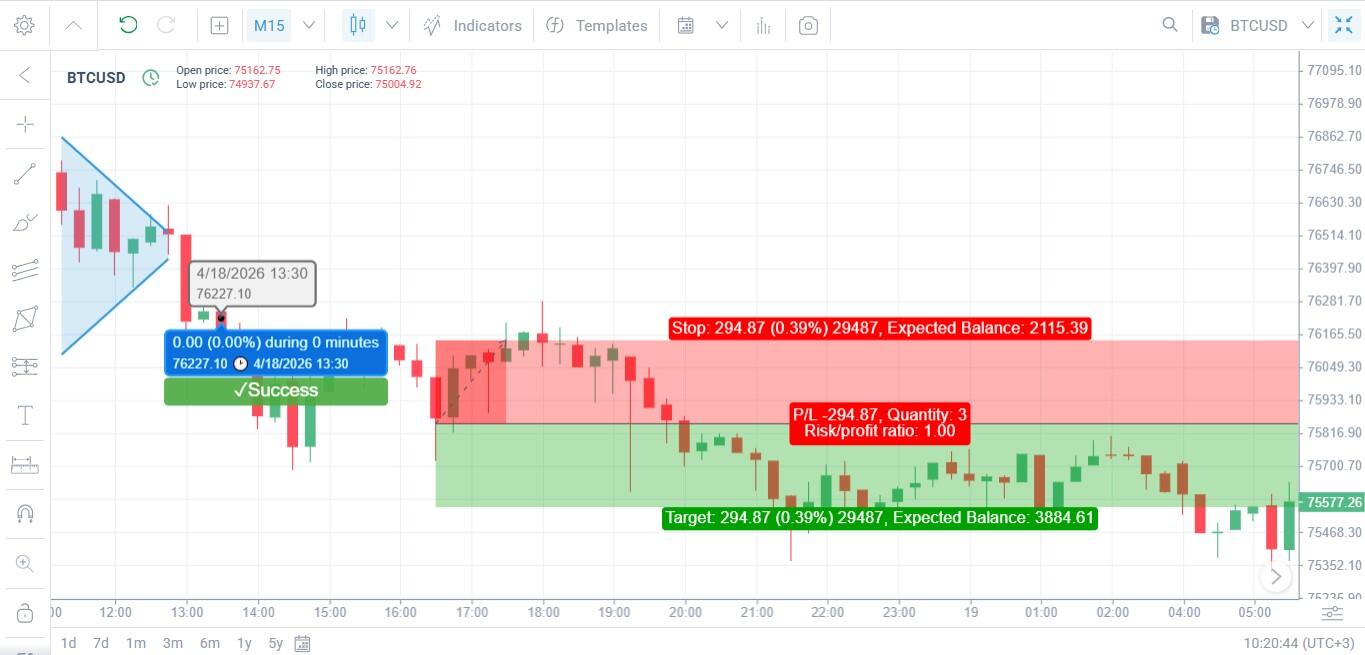
You can change the thickness and color of object lines. You can lock shapes to prevent them from being moved accidentally. Objects can be layered on top of each other—to do this, specify the layer order in the settings. If you no longer need the charting tools, right-click on the chart and select "Delete all figures."
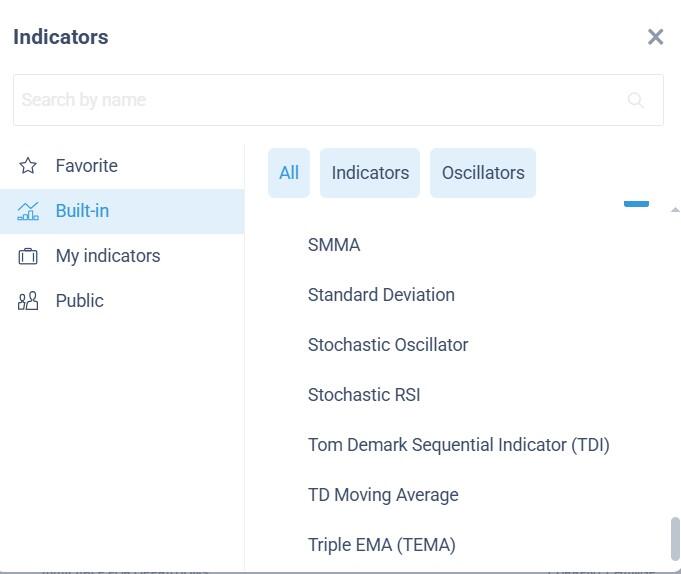
Built-in Indicators
The LiteFinance web platform offers significantly more built-in tools than MetaTrader. Here are the main groups of technical analysis indicators:
Trend indicators.
Oscillators (listed in a separate category).
Volume indicators.
Volatility indicators.
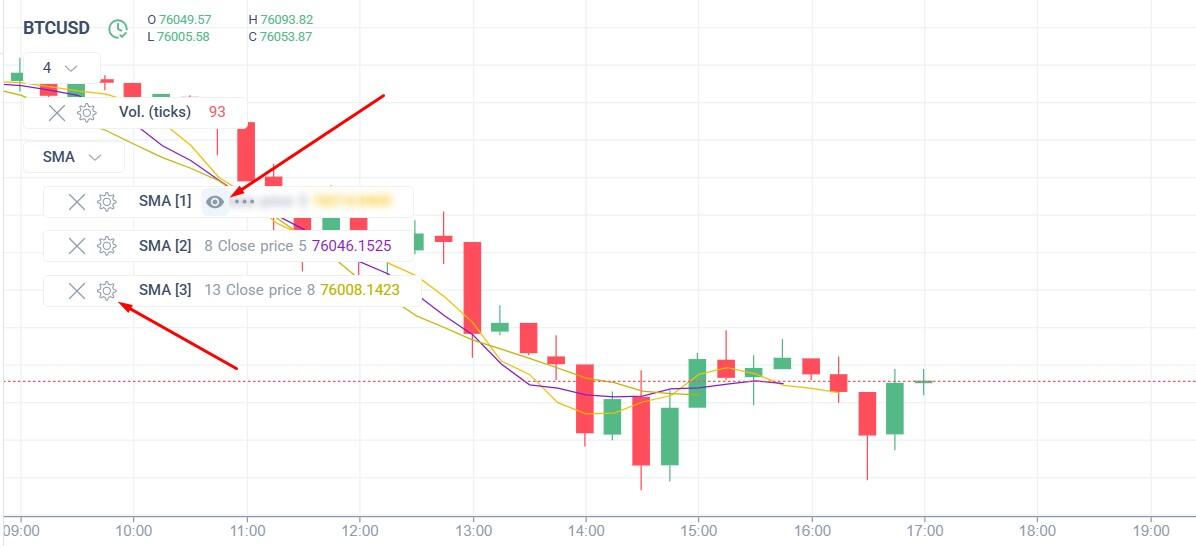
A settings panel appears in the upper-left corner of the indicator added to the chart. Here, you can customize the indicator's settings, remove it with a single click, or temporarily hide it.
The LiteFinance web platform's functionality will be significantly expanded, allowing users to create custom indicators on the platform without requiring any coding experience or technical skills.
Templates
Templates are pre-configured sets of technical indicators with specific settings. Templates save time by eliminating the need to manually configure charts each time. This way, you minimize the risk of configuration errors and free up time to focus on finding trading signals.
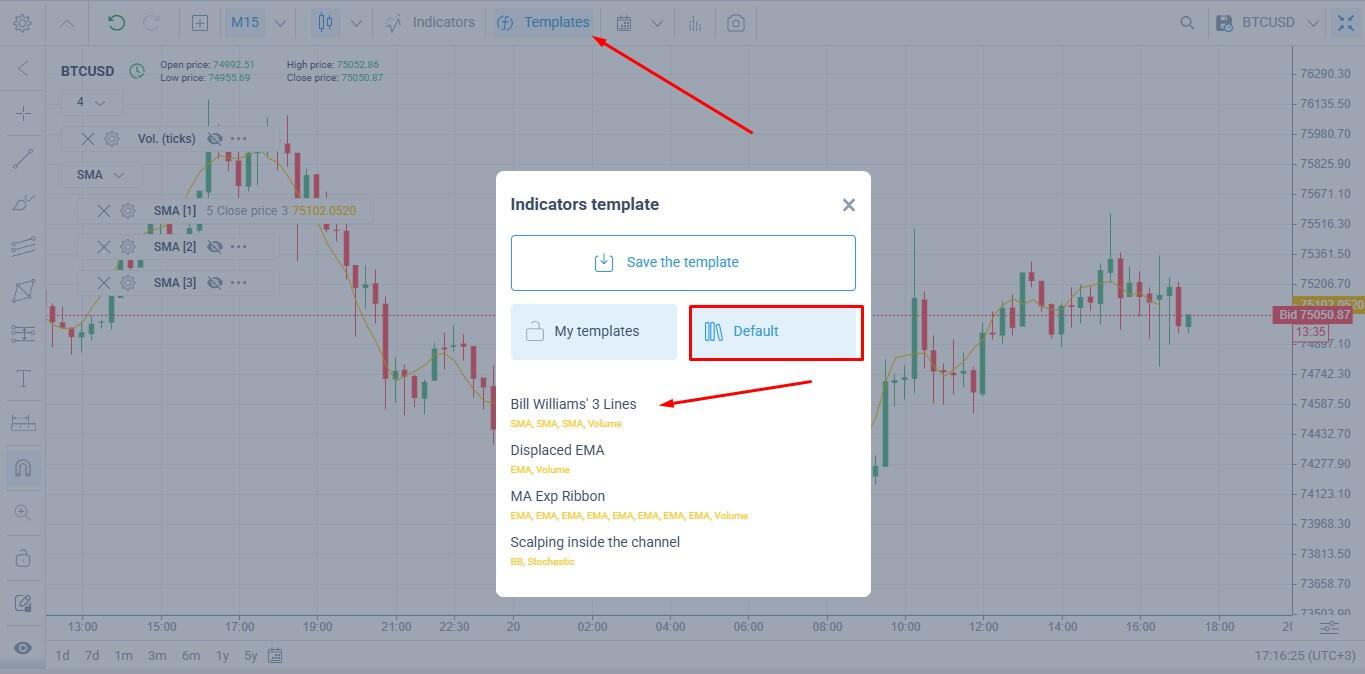
The platform features several standard templates for building a trading system. You can also save templates for your strategies. When saving a template, enter a name (any name will do); there are options to remember the symbol and period.
Copy Trading
The copy trading system allows you, as an investor, to link your account to a professional trader's account and automatically copy their trades. For the investor, this is a passive income stream. All of the trader's orders are copied to the investor's account according to the parameters set in the settings, and the trader receives a percentage of the investor's profits. You can disable copy trading at any time.
How to copy trades:
Open the Copy tab. You will see a list of traders ranked by profitability, popularity, and risk level.
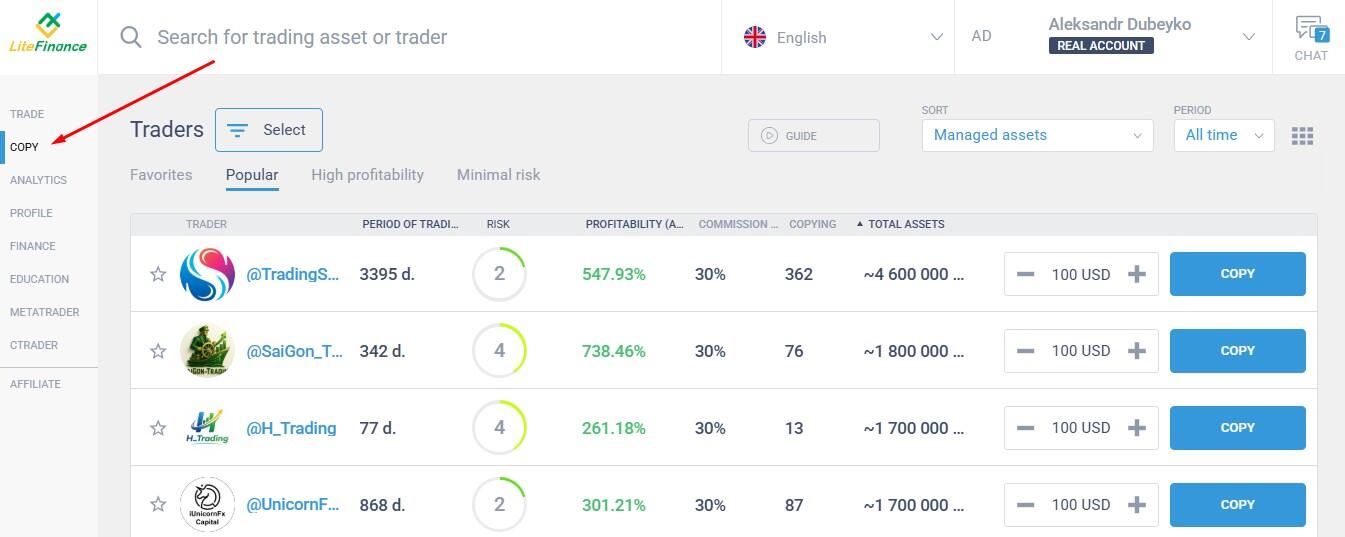
Select a trader. You can copy trades from multiple traders simultaneously. Selection criteria: return on investment, risk level, profitability, account age (at least one year), number of trades and subscribers, and commission fees.
You can also become a trader. If you want others to copy your trades and earn commissions, you'll need to rank among the top performers.
Start Copying
How copy trading works – step-by-step guide:
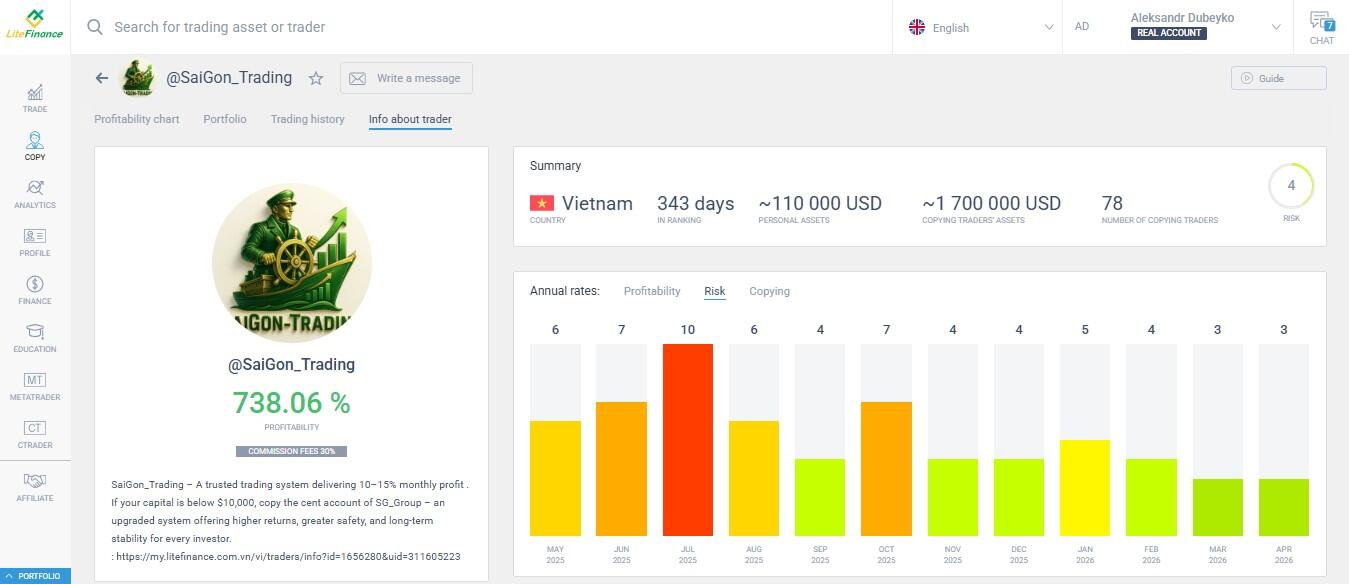
1. Go to the trader's profile. Here you'll find all the necessary information about the trader's activity and the terms for copying trades.
Here you can find:
A chart showing the trader's performance over different periods, including losses.
A list of trades with the trading asset, position size, and profit/loss.
Annual statistics: profitability, number of copying investors, estimated risk level, and the trader's commission.
2. Select a copy type:
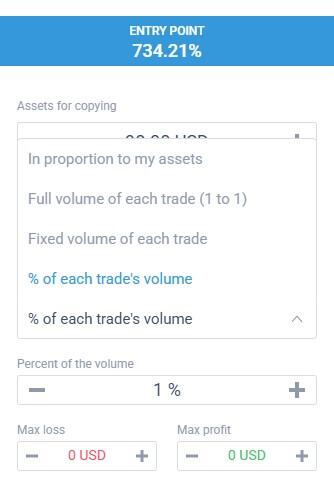
In proportion to my assets. If you have $100 and the trader has $200, your position size will be half as large.
Full volume (1:1). If the trader opens a trade with a volume of 1 lot, a trade of the same volume will be opened for you.
Fixed volume. You set the trade volume yourself.
% of volume. If the percentage is set to 10%, the trader opens a trade with a volume of 1 lot, and a trade with a volume of 0.1 lot is automatically opened for you.
Try out the copy trading feature on a demo account.
Get access to a demo account on an easy-to-use Forex platform without registration
Stop Copying
You can unsubscribe from a trader's account at any time, or close individual copied trades prematurely—for example, if they are losing and a margin call or stop-out is approaching.
The bottom section of the terminal displays all open positions. A separate Type column shows whether a trade is your own or copied. Click the Stop button to stop copying.
Analytics Section: Your Trading Guide
The Analytics tab contains useful tools for traders, featuring key information and signals from technical and fundamental analysis.
Quick overview:
Analytics feed. This includes news about specific assets; technical analysis (analysts' insights) and data on specific indicators (market sentiment, Fear & Greed Index), etc. It's useful for keeping up with the most important news about specific assets.
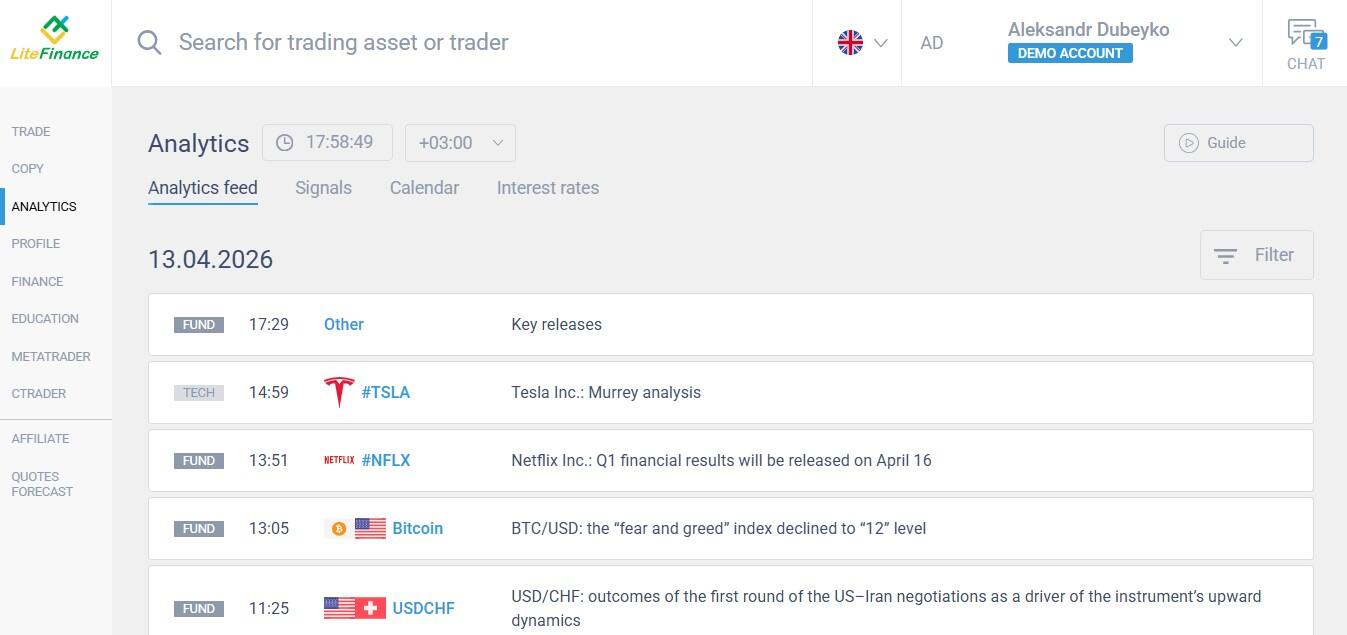
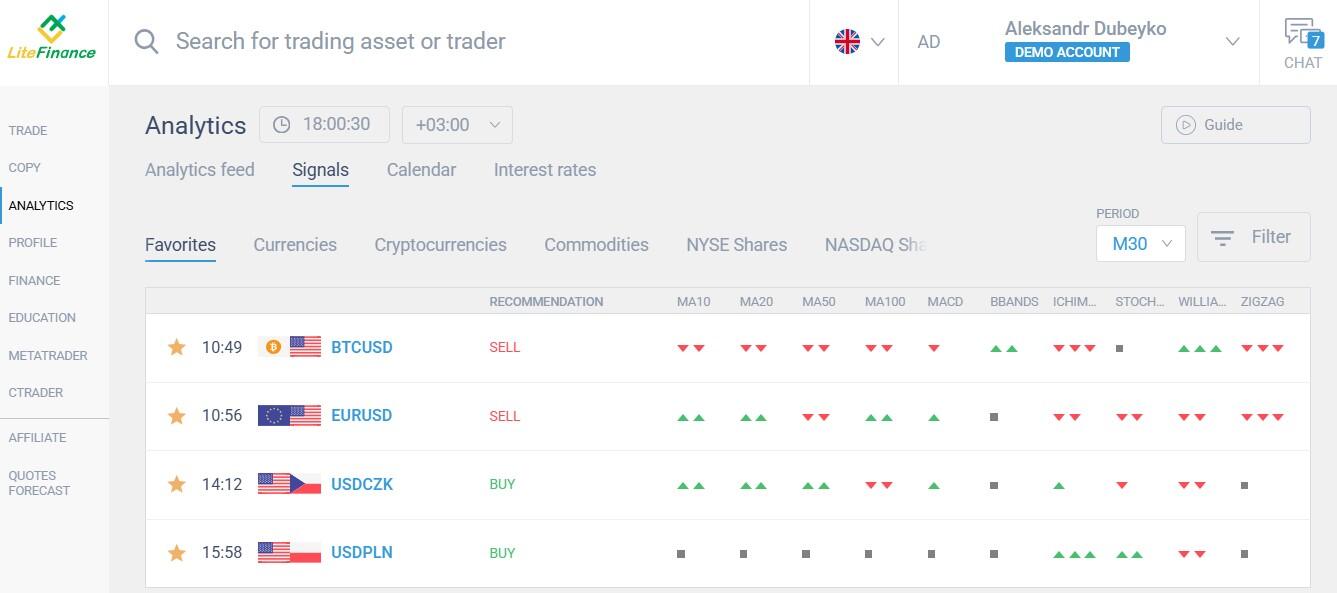
Signals from 10 key technical indicators across different time frames for most assets.
Economic calendar. Details about upcoming important economic events. For example, the release of macroeconomic statistics.
Interest rates. Central bank policy rates for over 15 countries, including the date of the last change.
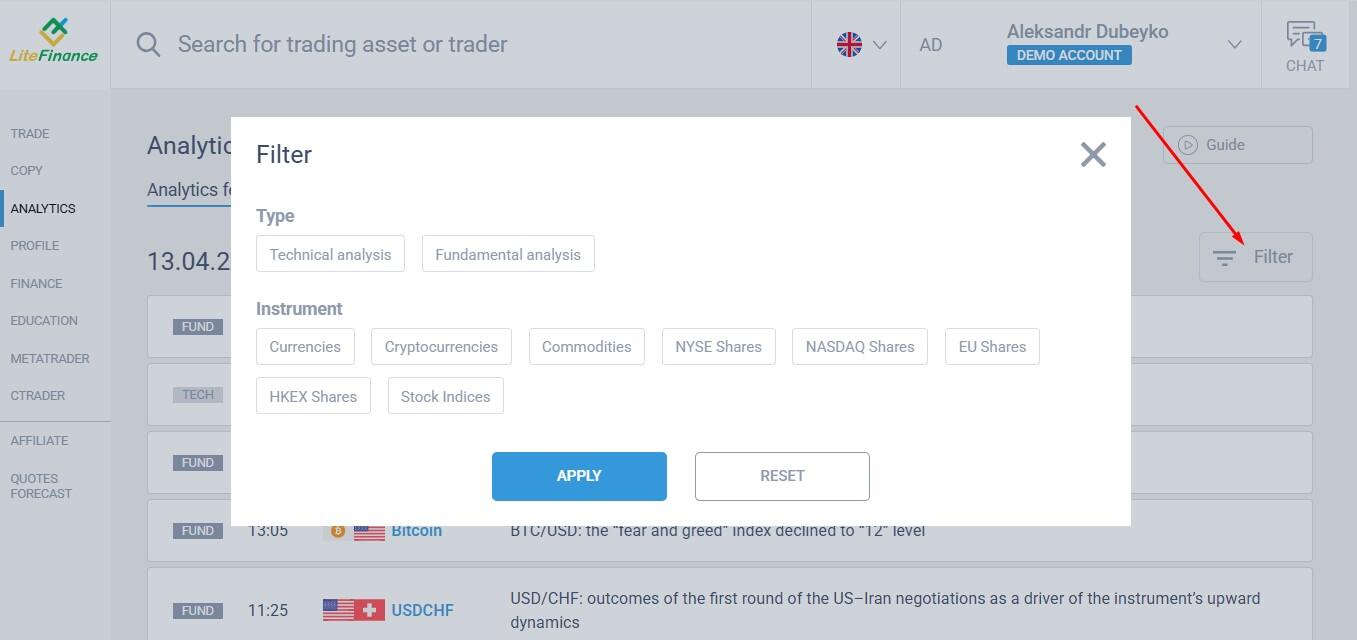
The Analytics feed and Signals sections include a useful filter.
Client Profile and Verification
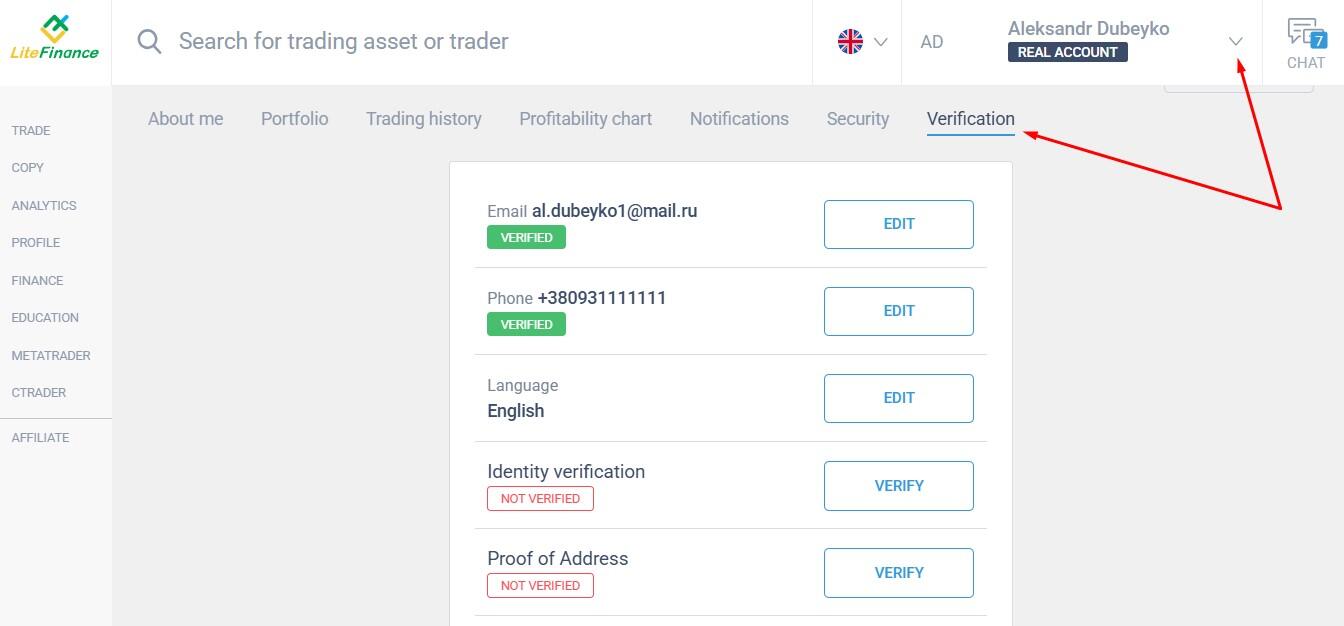
Before making your first deposit, you should verify your account and set up security measures after registration. This helps protect your account and funds from unauthorized access. Without verification, withdrawals will not be possible.
Verification involves:
Identity verification. Upload a scan of a document from the recommended list (ID card, passport, driver's license).
Proof of address. Upload a scan of a bank statement, utility bill, etc.
Payment method verification.
Documents are submitted via your Client Profile:
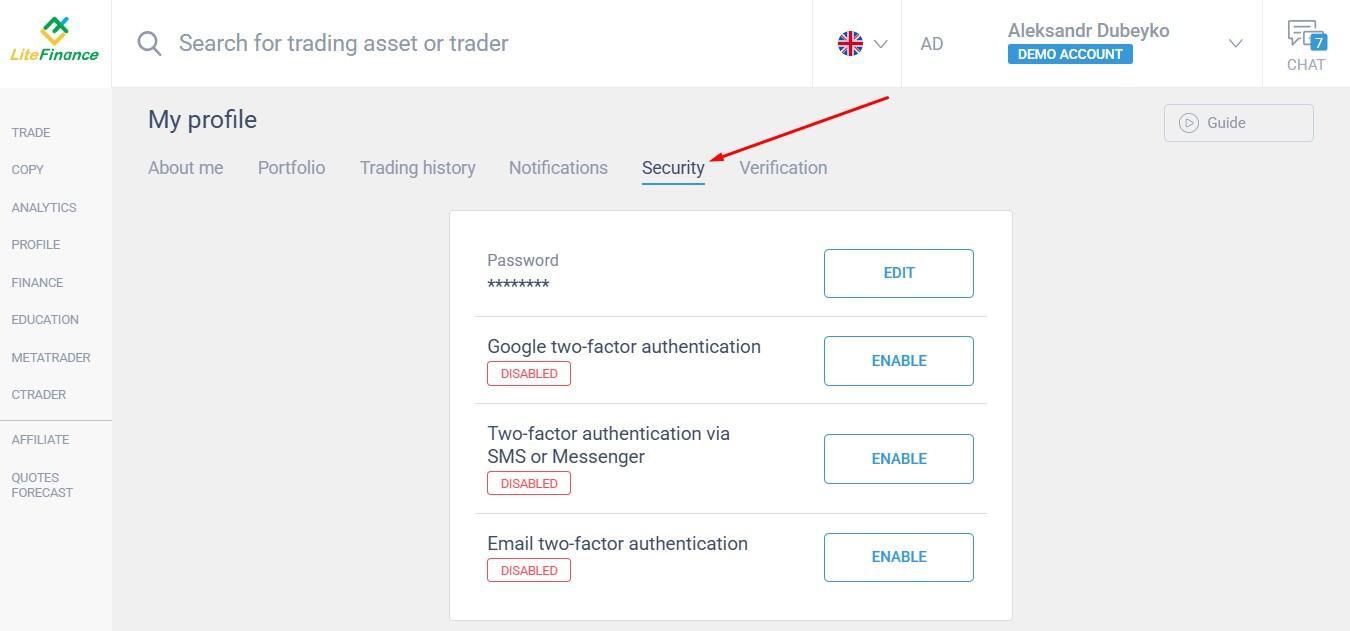
While you wait for the broker to verify your documents, set up your security settings:
Two-factor authentication using a code that changes every 30 seconds.
Two-factor authentication via SMS and/or email.
The verification process takes 1–3 hours on average.
Finance
Withdrawals can only be made to the same account used for deposits. If your account is blocked, you've lost your passwords, or similar issues, please contact our Client Support for assistance.
Pay attention to the withdrawal terms, including the minimum amount and fees.
How to make a deposit:
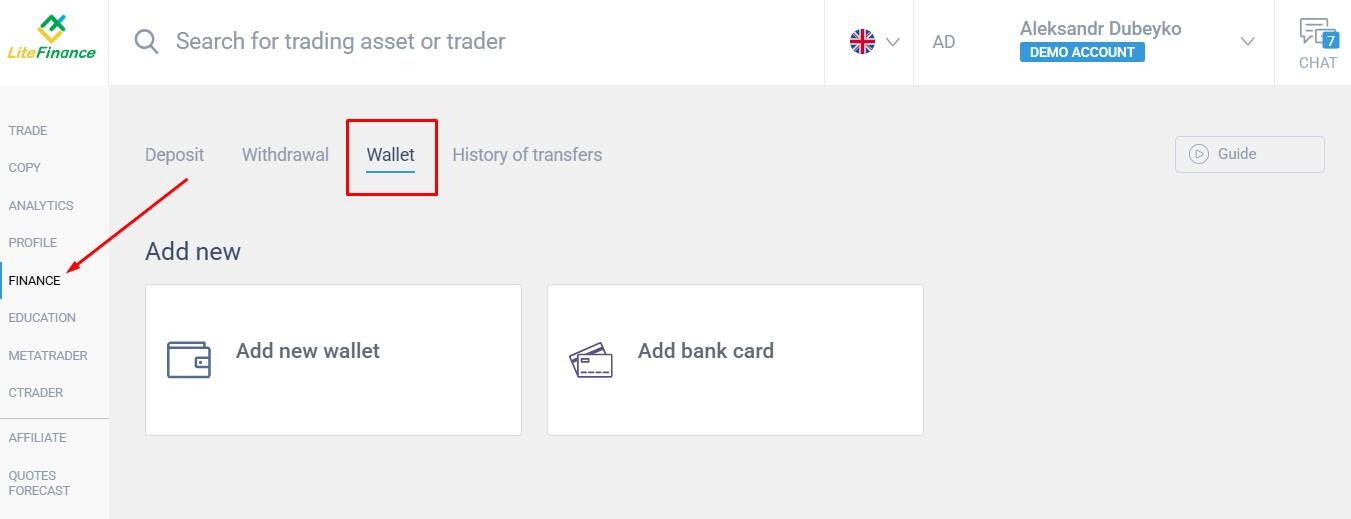
In the Finance tab, add an e-wallet, cryptocurrency wallet, or bank card. Some payment methods may require verification. Please contact our Support Team in advance to confirm the requirements.
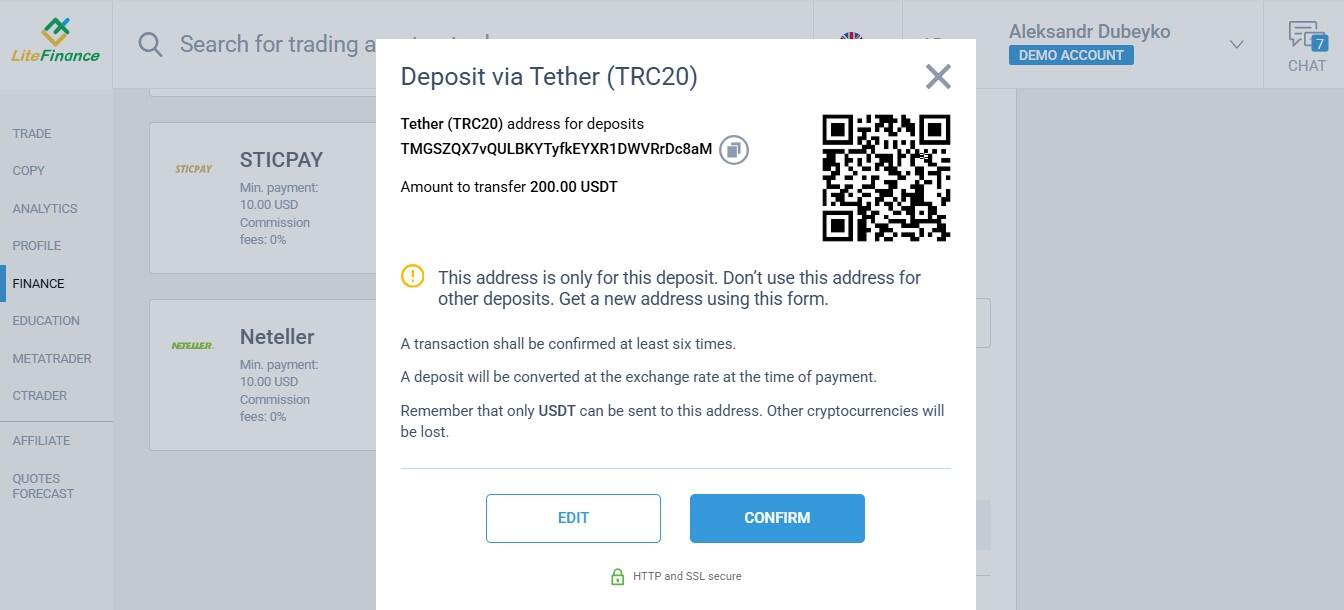
In the Deposit section, choose a payment method and follow the instructions.
To withdraw your funds, go to the Withdrawal section and follow the instructions. You can only withdraw funds that are not currently used for trading—the "Available for operations" value in the terminal.
MetaTrader
MetaTrader 4 and 5 are standalone trading platforms developed by MetaQuotes. Once you have opened an account with LiteFinance, you can link it to MT4/MT5 and access all trading assets, open trades, and your trading history.
How it works:
In your Client Profile, open the MetaTrader tab in the sidebar on the left. In this tab, you can create as many accounts of different types as you like. Here, you can also specify the account currency and leverage.
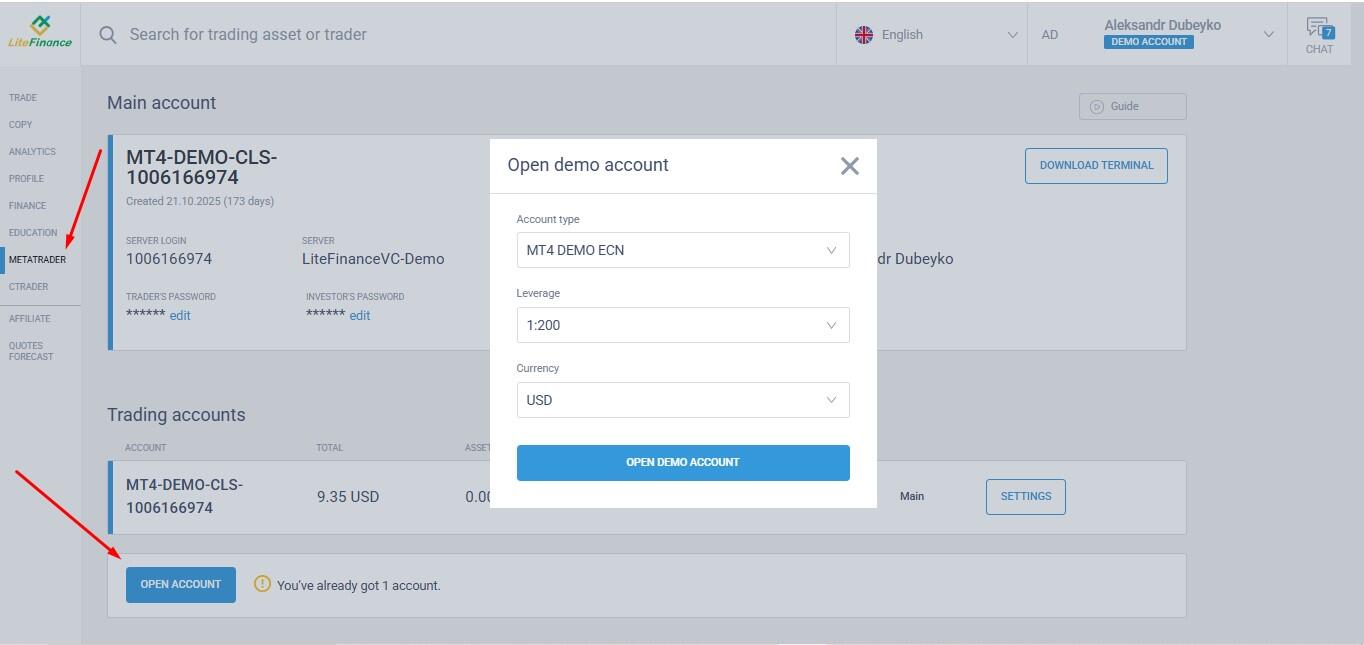
Download MT4/MT5 from the broker's website. Installation takes up to 5 minutes.
In the account settings in your Client Profile, copy your account number and set a password.
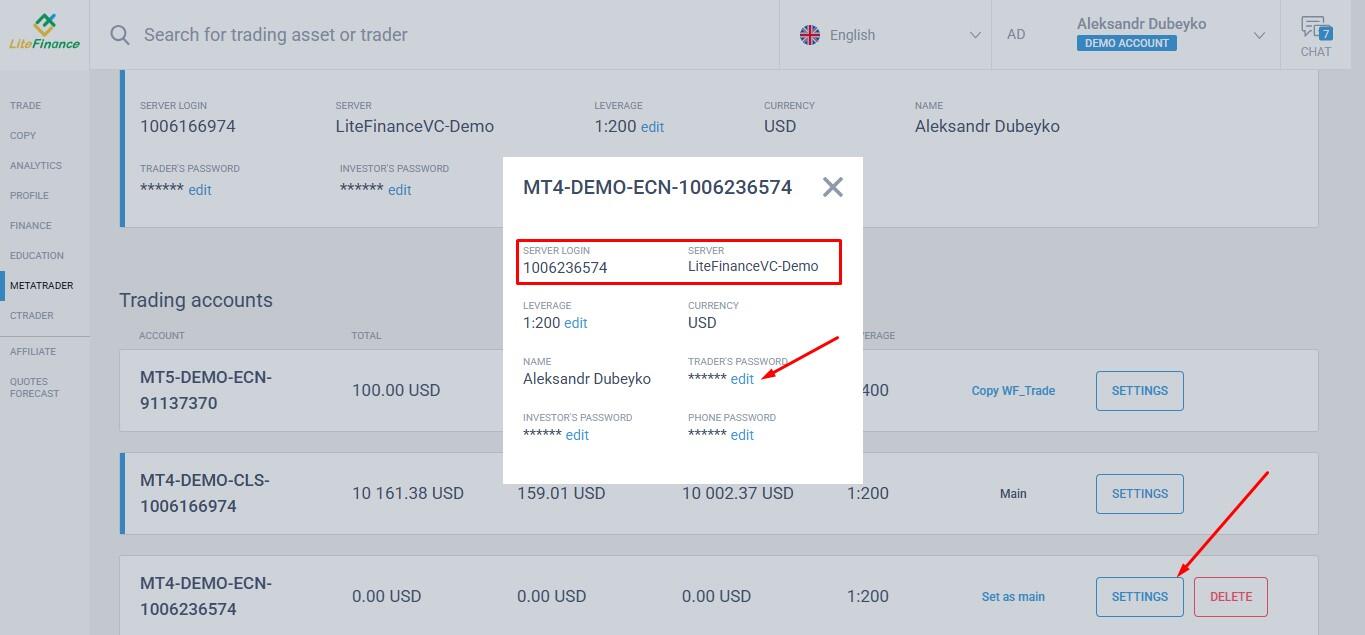
In MT4/MT5, click "File/Login to Trade Account" and enter your account details. Once you have done so, your account will be added to the MetaTrader platform.
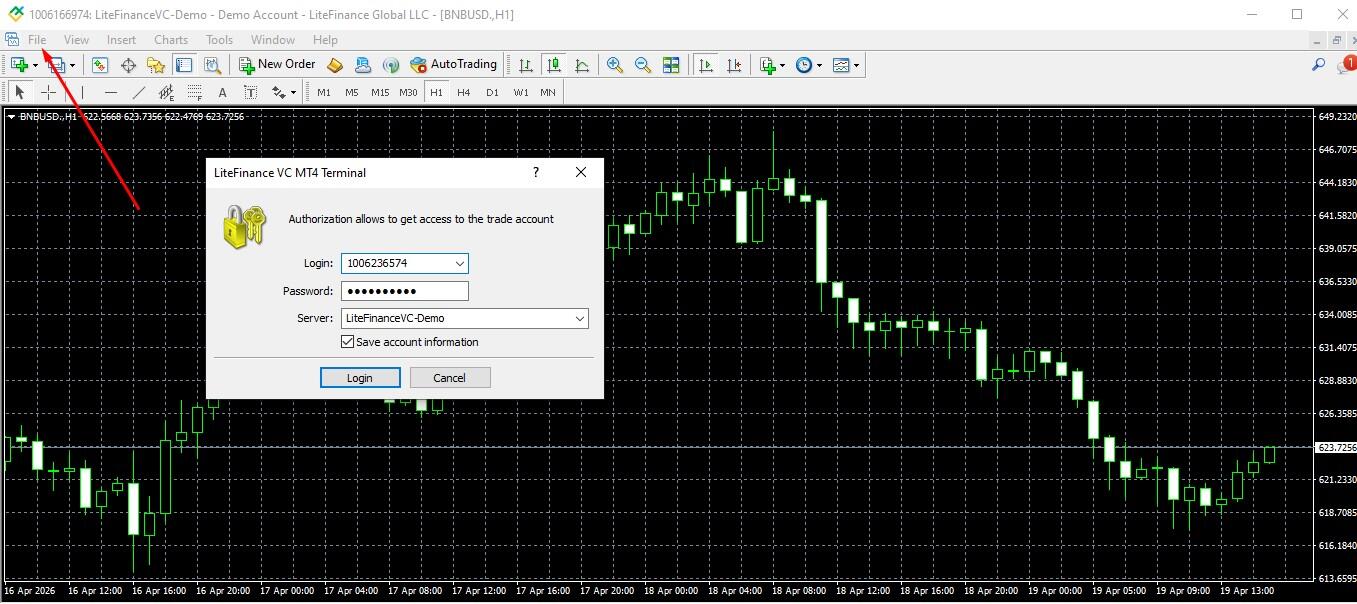
In your Client Profile, you can open standard CLASSIC and ECN accounts, a regular demo account, and an account for the Best of the Best contest, and link them to MT4/MT5. This account will be synchronized with the LiteFinance web platform and your account in the MetaTrader mobile app. You can trade using any platform.
cTrader
cTrader is a multi-asset platform for Forex trading developed by Spotware Systems. It is designed for professional traders who use ECN accounts, algorithmic trading, and high-frequency trading.
Key advantages:
Technological capabilities. High order execution speed and market depth (Level II).
Functionality. Advanced charts, algorithmic trading via cTrader Algo, and the ability to add custom tools developed in C#.
Additional order types. For example, Smart Stop-Out: When the margin falls to a critical level, the system does not close the entire position. Instead, it partially reduces the position size to restore margin coverage.
You can download the platform for any device on the official LiteFinance website. Please note that accounts are opened directly on the platform, and they are not synchronized with the web terminal.
Affiliate Profile
A broker's affiliates are individuals, such as webmasters, traders, or anyone looking to earn passive income, or companies that attract new clients through referral links and receive commission. These affiliates use marketing strategies such as content creation, advertising, and social media to attract clients. In turn, the broker pays them a percentage of the spread, a per-trade commission, or a fixed fee for each active referral.
Campaigns
In the Affiliate Profile, affiliates can create and track the performance of any program tailored to specific user groups.
Features:
You can create multiple campaigns with distinct referral links to track traffic, conversions, and other metrics across lead-generation channels. For example, one link for a specific webinar and another for promotion on your social media channel.
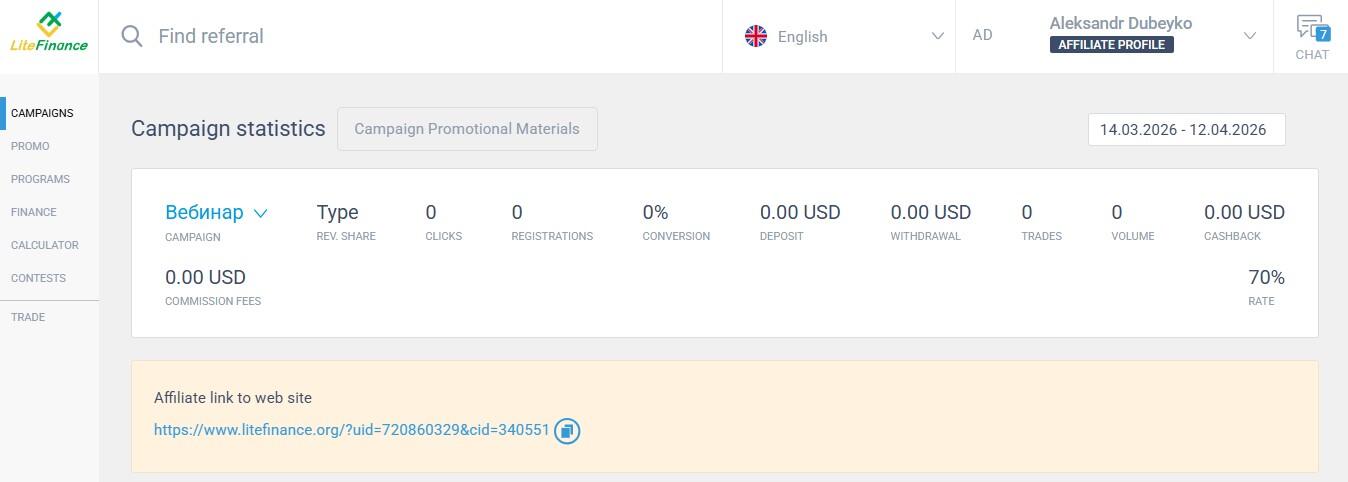
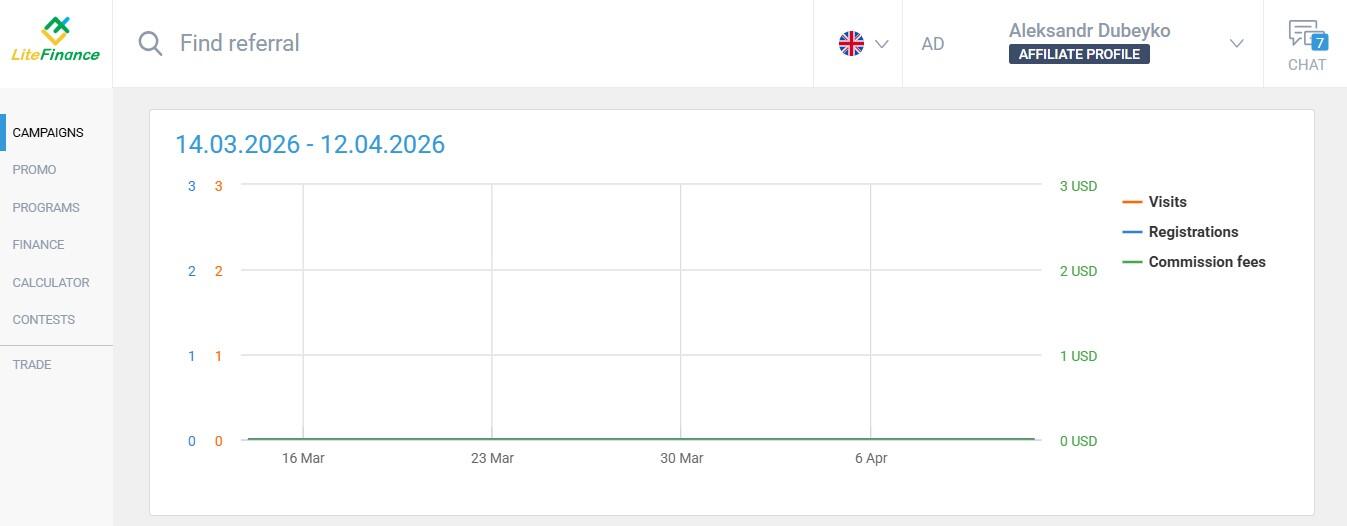
You can track visits and sign-ups via affiliate links, and commissions paid for referrals over a specific period.
You can also track statistics for each referral individually.
This set of tools helps reveal the most effective engagement strategies, taking into account regional and other factors.
Promo
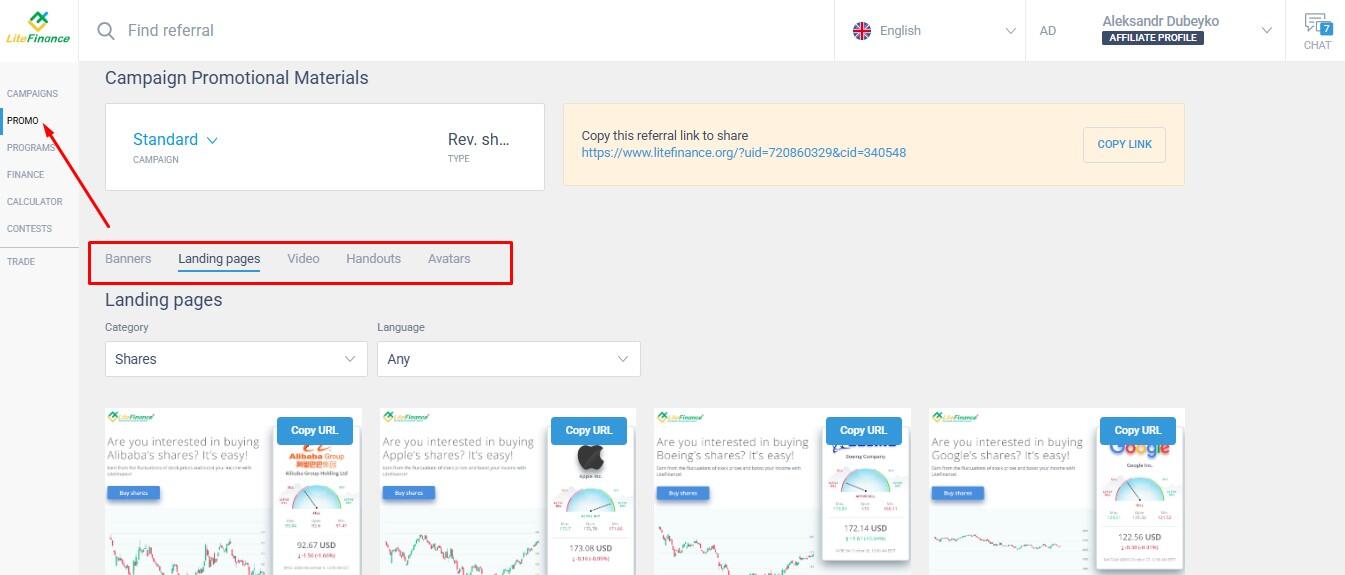
LiteFinance provides promotional materials to help partners attract new clients. These materials include logos, banners, landing pages, flyers, and more.
With these promo material, you can do the following:
Create a blog using landing pages, banners, logos, promotional videos to promote valuable content, affiliate links, and promo codes.
Set up social media groups and channels with branded elements.
Design business-style email newsletters featuring the LiteFinance brand.
Print business cards and marketing materials for distribution, participation in various events, etc.
LiteFinance provides these materials free of charge in your Affiliate Profile.
Programs
LiteFinance offers the following affiliate programs:
Revenue Share. You can earn up to $15 per trade made by a referral and 10% of your sub-partner's profits. This is a great way to earn extra income thanks to its favorable terms for referrals.
CPS. You can receive up to $50 per referral who meets specific requirements, plus 10% of the sub-partner's profits. This program is perfect for active partners looking to build a large network of actively trading referrals.
Regional Representative. An offer for legal entities interested in promoting the LiteFinance brand in their region.
In the Affiliate Profile, you can add as many affiliate programs of different types as you like, each focusing on specific categories of traders.
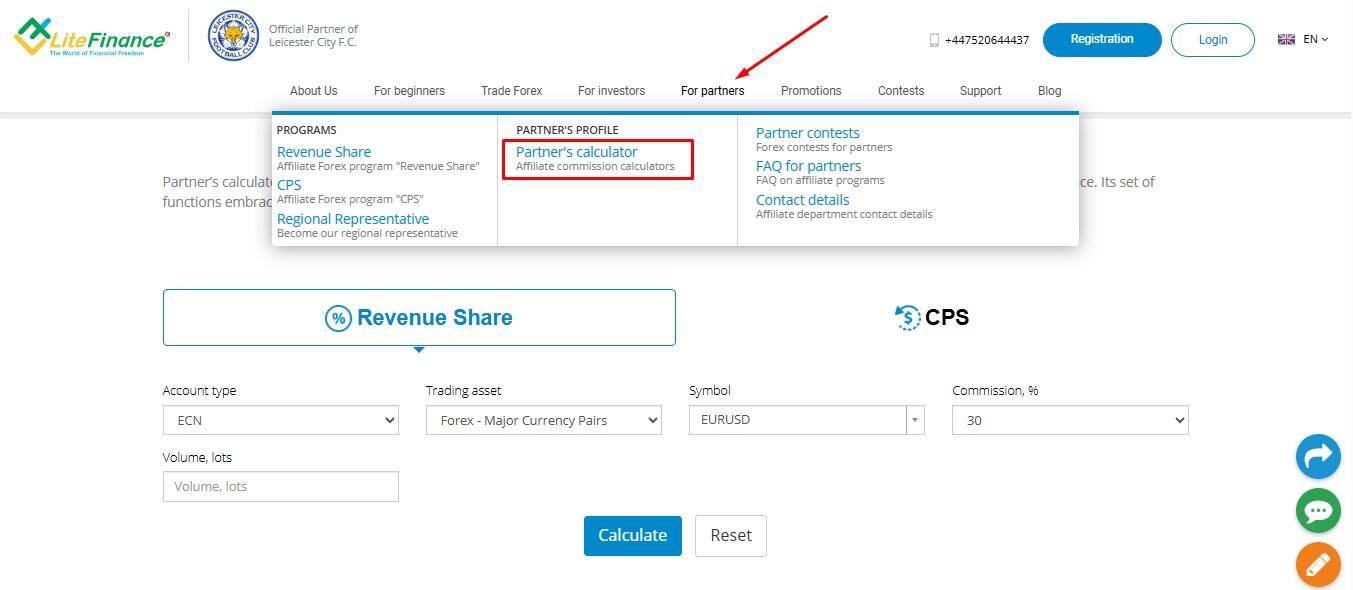
Calculator
The affiliate commission calculators are designed to help you estimate the approximate profitability of each program based on the potential earnings of referrals and partners:
The Revenue Share calculator estimates the commission earned from a single referral based on their trading activity.
The CPS calculator estimates profits based on the number of referrals attracted.
You can use the calculators without signing up for an Affiliate Profile on the broker's website.
Conclusion
The LiteFinance web platform is a convenient, user-friendly environment designed for all types of manual trading strategies. Key features include advanced technical and charting tools, flexible chart zooming, and access to an Affiliate Profile. It also offers a copy trading system with broker-verified trader ratings.
Discover how professional trading can become simple and accessible directly in your browser. The platform is well-suited for beginner traders to practice and gain experience. Try trading on the LiteFinance web platform and see for yourself.
The content of this article reflects the author’s opinion and does not necessarily reflect the official position of LiteFinance broker. The material published on this page is provided for informational purposes only and should not be considered as the provision of investment advice for the purposes of Directive 2014/65/EU.
According to copyright law, this article is considered intellectual property, which includes a prohibition on copying and distributing it without consent.